Excel for Students: A Practical Guide to Faster Coursework
Practical Excel guide for students: stats homework, data analysis projects, lab reports, and free VBA macros that work offline on the school laptop.
2026-04-28
Why Excel matters for students (even outside business majors)
Excel isn't a business-school thing. It's a general-purpose data tool that shows up in stats homework, lab reports, research projects, journalism investigations, sociology coursework, anywhere data needs to be wrangled into a usable shape.
The student version of Excel skill isn't "build complex financial models." It's:
- Get the data into a clean shape after copying from a website or PDF.
- Calculate basic descriptive statistics for a project.
- Convert raw numbers into the format the assignment requires.
- Save the file in the format the professor expects.
Most of this is achievable with five or six free macros plus a handful of formulas. This guide covers what you actually need, without the corporate-finance-flavored advice that's irrelevant to coursework.
TL;DR: Key takeaways
- Most student Excel work is data cleanup, descriptive stats, and assignment-format conversion.
- Free VBA macros handle the most common steps: trimming whitespace from copy-pasted data, converting text-stored numbers, calculating mean/median/mode, converting scores to letter grades.
- All the macros run offline. Your data and your work stay on your laptop.
- Setup is one-time. After that, every use is a single keyboard shortcut.
- Time saved per assignment: 30 to 90 minutes depending on the data wrangling involved.
The 4 categories of student Excel work
Most student Excel tasks fall into:
- Cleanup of copied or imported data: from websites, PDFs, lab equipment exports.
- Descriptive statistics: mean, median, mode, std dev for stats homework or lab reports.
- Per-row calculations: grade conversions, running totals, length checks.
- Format and export: turning the workbook into what the assignment requires (PDF, CSV, specific layout).
Category 1: Cleanup of copied or imported data
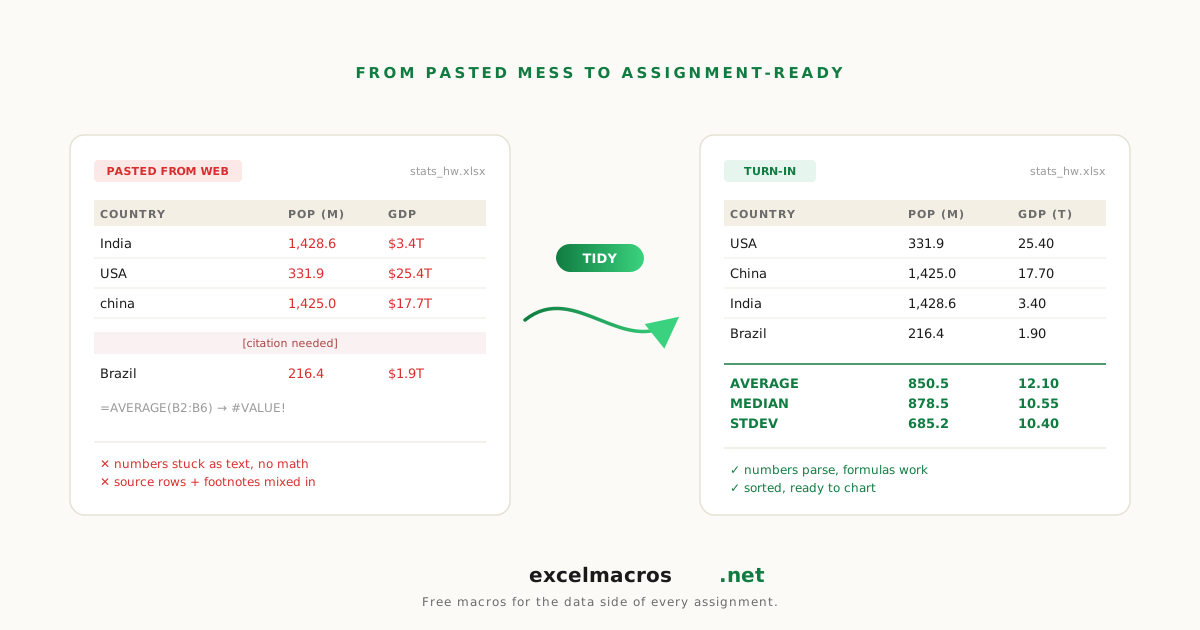
You copy a table from a website. Or extract one from a PDF. Or import lab equipment output. The data is "almost" usable but has invisible problems.
Common issues and the macro that fixes each:
- Invisible whitespace: cells look the same but VLOOKUP fails. Use Trim Whitespace From All Cells.
- Numbers stored as text: SUMIF returns 0. Use Convert Text to Numbers.
- Mixed date formats: dates that look like dates aren't really dates. Use Standardize Mixed Date Formats.
- Merged cells from PDF conversion: pivot fails to build. Use Unmerge Cells and Fill Down.
- Blank rows scattered through the data: filters break. Use Remove Blank Rows.
- Special characters from copy-paste: emoji and smart quotes in text. Use Remove Special Characters.
A typical student data-cleanup chain takes about 90 seconds with macros versus 20 to 40 minutes manually.
Category 2: Descriptive statistics
For stats homework, lab reports, or any data analysis assignment.
Quick Statistics Summary
Select a column of numbers, run the macro, get a 9-row table next to it: count, mean, median, mode, sample standard deviation, min, max, range.
This covers what 80% of intro stats and lab report assignments require. No formula typing.
Deep dive: How to Calculate Statistics for a Column in Excel.
When you need more than the basics
For variance, skewness, kurtosis, percentiles, regression coefficients, the Analysis ToolPak (File > Options > Add-ins > Analysis ToolPak) gives you the full suite. Or use specific Excel functions:
=VAR.S(range): sample variance.=PERCENTILE.EXC(range, 0.25): 25th percentile (Q1).=SLOPE(y, x)and=INTERCEPT(y, x): linear regression.
For multiple regression, ANOVA, hypothesis testing: Analysis ToolPak handles them. Macros aren't the right tool for those.
Category 3: Per-row calculations
Letter Grade From Numeric Scores
Convert percentages to A/B/C/D/F. Useful for any assignment that asks you to apply a grading rubric to numeric scores.
Deep dive: How to Calculate Letter Grades from Numeric Scores in Excel.
Count Words and Characters Per Cell
For essay-style responses or short-answer assignments, get word and character counts per response in one pass.
Add Running Total Column
For cumulative analyses (cumulative sum, running average over time), this writes static values that don't shift if you delete a row above.
Category 4: Format and export
The assignment says "submit as PDF" or "submit as CSV." Or the professor wants the workbook organized in a specific way.
Export Each Sheet to CSV
If the assignment requires multiple CSV files (one per dataset, one per condition), this batches them in 2 seconds.
List All Sheet Names
For multi-tab projects (one tab per data source, one tab per analysis step), generate a clickable index for the professor's navigation.
Convert Formulas to Values
Before submitting, freeze your model so the professor's Excel doesn't show #REF! errors if they accidentally delete a row.
A typical stats homework workflow
Assignment: analyze 5 datasets, report descriptive stats and a brief interpretation for each.
- Open the workbook with the 5 datasets (one per tab).
- Clean each dataset:
- Run Trim Whitespace.
- If numeric columns came in as text, run Convert Text to Numbers.
- Generate stats: per dataset, select the numeric column, run Quick Statistics Summary.
- Inspect outliers: run Highlight Top and Bottom Values for visual outlier detection.
- Write interpretations in cells below each stats table.
- Submit: save as PDF (
File > Export > PDF) or as CSV per dataset using Export Each Sheet to CSV.
Total time: 30 to 45 minutes versus 1.5 to 2 hours of formula-typing and per-cell work.
A typical lab report workflow
Lab equipment exported a CSV with measurements. Need to: clean data, compute average and standard deviation, plot, write up.
- Import the CSV in Excel.
- Clean:
- Trim Whitespace.
- Convert Text to Numbers on measurement columns.
- Standardize Mixed Date Formats on the timestamp column if needed.
- Stats: Quick Statistics Summary.
- Plot: select data, Insert > Chart, pick the chart type that fits the experiment.
- Format the chart: title, axis labels, units. Excel's chart UI handles this directly.
- Write up the lab report in Word, copy chart and stats table from Excel.
Macro chain saves about 20 to 30 minutes per lab.
A typical research project workflow
Project: scrape data from a website, clean it, build a basic analysis, present.
- Get the data (web copy-paste, or use a browser extension that exports to CSV).
- Clean:
- Remove Blank Rows: usually plenty after web copy-paste.
- Remove Line Breaks From Cells: common artifact.
- Remove Special Characters if there's emoji or symbols in the text data.
- Trim Whitespace From All Cells: fix invisible whitespace.
- Analyze:
- For categorical data: Auto Pivot Summary for category counts.
- For numeric data: Quick Statistics Summary.
- For outliers: Highlight Top and Bottom Values.
- Present: charts, tables, brief writeup.
For a 1,000-row scraped dataset, the cleanup phase goes from "this is going to take an evening" to about 5 minutes.
What about Google Sheets?
Some courses require Google Sheets. The macros here are Excel-only (VBA doesn't run in Sheets). Sheets has its own scripting language (Google Apps Script) that's similar in spirit but different in syntax.
For coursework, the safest approach: use Excel for any workflow involving these macros, then export to CSV or .xlsx to share with collaborators using Sheets. Excel's export-to-Sheets compatibility is solid.
Privacy and data security for students
Some student data is sensitive (research participant data with privacy expectations, clinical research data subject to IRB rules, anything covered by FERPA in the US for educational records).
The macros at excelmacros.net run entirely offline:
- No network calls.
- No data leaves your laptop.
- Source code is plain text and auditable.
Important when your assignment involves data you're not allowed to upload to a remote service.
Frequently asked questions
What if I'm new to Excel and the formula syntax confuses me?
The macros sidestep the formula learning curve. Each macro has a single button: select your data, run the macro, get the result. No =AVERAGE(B2:B100) typing. Read How to Use Excel VBA Macros Without Knowing How to Code for the basics of running macros.
Will my school IT allow macros?
Most school IT setups allow macros that don't auto-run on file open. Each macro at excelmacros.net is manually invoked via Alt+F8, so it doesn't trigger the IT block on auto-running macros. If your IT explicitly forbids all macros, ask them to whitelist specific files; the source code is plain text and auditable.
What's the easiest first macro for a student?
Probably Trim Whitespace From All Cells. It fixes the most common Excel mystery (VLOOKUP failures from invisible whitespace) and the value is immediate. Once you've done one macro install, the next ones take 30 seconds each.
Are there free alternatives that don't require Excel?
For descriptive stats, Python (with pandas) and R are free and open-source. The learning curve is steeper than Excel but you get more analytic power. For courses that already require one of those, learn it. For everything else, Excel + macros is faster.
Can I use these macros on my chromebook?
Chromebook runs Excel for the web (browser version), which doesn't support VBA macros. You'd need a Windows or Mac laptop. Some universities have lab computers; most assignments are doable from a school lab.
What to do next
The fastest single time-saver for most students: download Quick Statistics Summary and use it on the next dataset that crosses your screen. The 90 seconds it saves you on the first run shows you the macro pattern. From there, the rest of the toolkit fits naturally.
For broader coverage of cleanup specifically, The Complete Guide to Cleaning Up Data in Excel. For the macro fundamentals, How to Use Excel VBA Macros Without Knowing How to Code.