The Complete Guide to Cleaning Up Data in Excel
Pillar guide to fixing messy data in Excel: duplicates, blanks, mixed formats, dirty text. With free macros and tutorials for every common cleanup task.
2026-04-28
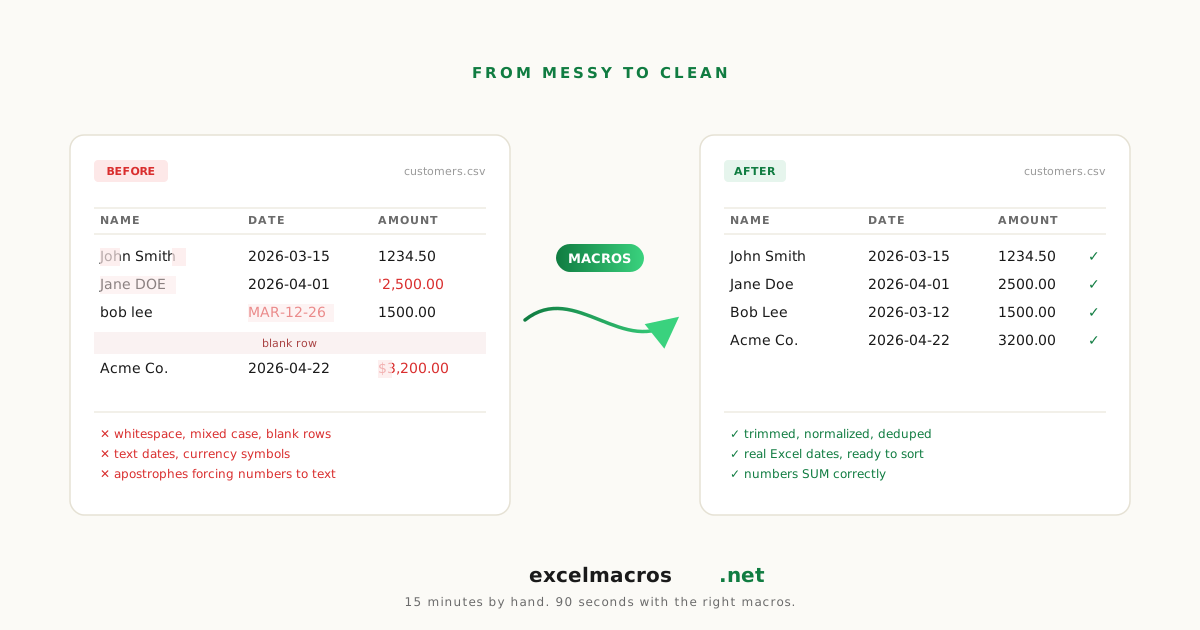
Why every Excel user eventually needs a cleanup routine
Sooner or later, every spreadsheet becomes a mess. CSV imports come in with mixed date formats. Copy-paste from a web page brings invisible whitespace. A pivot export leaves blank cells where category labels should repeat. The data isn't broken; it's just wearing the wrong shape for the next thing you want to do with it.
This guide is the complete map of Excel data cleanup. We cover the eight most common cleanup categories, the manual fix for each, and the free macro that does it in one click. By the end you'll know what to reach for the next time SUMIF returns 0, VLOOKUP returns #N/A, or your pivot table refuses to build. Microsoft's own top ten ways to clean your data covers the built-in tools. This guide adds the one-click macro for each.
TL;DR: Key takeaways
- Most "broken" data isn't broken, it's just messy. Eight categories of mess account for 95% of Excel cleanup work.
- The categories are: duplicates, whitespace, text-stored numbers, mixed date formats, merged cells, blank rows, blank columns, and inconsistent capitalization.
- Each category has a manual fix in Excel and a free macro alternative. The macro saves time when the cleanup recurs weekly.
- Run cleanup in a sensible order: structural fixes first (merges, blank rows), then text fixes (whitespace, capitalization), then numeric fixes (text-as-numbers, date formats), then dedupe.
- Always work on a copy of your data. Cleanup operations are easier to redo than to undo six steps deep.
The 8 categories of Excel data mess
Almost every cleanup job in Excel falls into one of these:
| Category | Symptom | First-line fix |
|---|---|---|
| Duplicate rows | Inflated counts, double-counted totals | Remove duplicates by multiple columns |
| Whitespace contamination | VLOOKUP returns #N/A for visually-identical values | Trim whitespace from all cells |
| Numbers stored as text | SUMIF returns 0, math operations fail | Convert text to numbers |
| Mixed date formats | Date math fails, charts treat dates as strings | Standardize mixed date formats |
| Merged cells | Pivot fails to build, sort breaks | Unmerge cells and fill down |
| Blank rows | Filters miss data, exports get noisy | Remove blank rows |
| Blank columns | CSV exports waste columns, table gets wide | Delete empty columns |
| Inconsistent capitalization | Names don't match in lookups, reports look unprofessional | Convert text to proper case |
The rest of the guide expands each category with the manual fix, the macro, and the order to run them in.
Category 1: Duplicate rows
Symptom: Your row count or sum is too high. You suspect rows are duplicated.
Manual fix: Excel's built-in Data > Remove Duplicates dedupes when every column matches. That's almost never what you want. You want to dedupe by name and email while ignoring the phone number that changed between orders.
Macro fix: Remove Duplicates by Multiple Columns lets you specify which columns count for the duplicate check. Type 1,3 to dedupe by columns 1 and 3 (e.g., name and email). Excel's built-in can't do this without a helper column.
Companion: Before deleting, sometimes you want to see the duplicates first. Highlight Duplicate Values paints them so you can eyeball before acting.
For the full deep-dive: How to Remove Duplicate Rows by Multiple Columns.
Category 2: Whitespace contamination
Symptom: Your VLOOKUP returns #N/A even though both columns clearly have the same value. You stare at the cells. You can't see a difference.
Cause: Invisible whitespace. Trailing spaces, leading spaces, double spaces, non-breaking spaces from web copy-paste.
Manual fix: =TRIM() handles regular spaces. For non-breaking spaces, you need =TRIM(SUBSTITUTE(A2, CHAR(160), " ")).
Macro fix: Trim Whitespace From All Cells handles all four whitespace categories (leading, trailing, double-internal, non-breaking) in a single pass.
For the full deep-dive: How to Trim Whitespace from Cells in Excel.
Category 3: Numbers stored as text
Symptom: SUMIF returns 0. The cells visibly contain numbers. Your math operations error.
Cause: CSV imports often store numeric columns as text. Numbers with currency symbols ($1,234.56) or accounting parentheses ((789)) come in as text strings even when they look like numbers.
Manual fix: The green-arrow trick (Convert to Number) handles apostrophe-prefixed text. For currency-formatted strings, you need Paste Special > Multiply by 1, or a VALUE(SUBSTITUTE(...)) formula chain.
Macro fix: Convert Text to Numbers handles every common case: currency symbols, commas, accounting parentheses (which become real negative numbers), in one pass.
For the full deep-dive: How to Convert Text to Numbers in Excel.
Category 4: Mixed or wrong-locale date formats
Symptom: Date filters return zero matches. Charts treat dates as text. SUMIFS by month returns 0.
Cause: CSV came from a system in a different locale. Your US Excel can't parse 28/04/2026; UK Excel can't parse 04/28/2026.
Manual fix: =DATEVALUE() parses based on Excel's locale. For cross-locale dates, you need Power Query's "Change Type Using Locale" feature.
Macro fix: Standardize Mixed Date Formats lets you pick the source format explicitly (US, UK/EU, ISO), regardless of your Excel's locale.
For the full deep-dive: How to Standardize Mixed Date Formats in Excel.
Category 5: Merged cells breaking everything
Symptom: Pivot table fails to build with "The PivotTable field name is not valid." Filter doesn't work. Sort breaks rows.
Cause: Inherited workbooks and PDF-converted Excel files often have merged cells in category columns or headers.
Manual fix: Toggle Merge & Center off (cells become blank). Then F5 > Special > Blanks > =A2 > Ctrl+Enter to fill the now-empty cells with the value from above.
Macro fix: Unmerge Cells and Fill Down does both steps in one click.
For the full deep-dive: How to Unmerge Cells and Fill Down in Excel.
Category 6: Blank rows scattered through the data
Symptom: Your filter shows fewer rows than expected. CSV exports look noisy.
Cause: CSV exports from supplier portals and PDF converters often insert blank separator rows between groups.
Warning: The famous F5 > Special > Blanks > Delete Entire Row trick is dangerous. It deletes any row with any blank cell, not just entirely-blank rows. People delete half their data with this trick on a regular basis.
Macro fix: Remove Blank Rows deletes only rows where every cell in your selection is blank. Safer than the F5 trick.
For the full deep-dive: How to Remove Blank Rows in Excel.
Category 7: Blank columns from over-wide CSV exports
Symptom: Your CSV import has 47 columns but only 8 contain real data.
Cause: Source systems export every available field, including ones nobody fills in.
Macro fix: Delete Empty Columns scans your selection and removes any column where every cell is empty.
Category 8: Inconsistent capitalization
Symptom: Mail merge labels look unprofessional with JOHN SMITH next to jane doe.
Manual fix: Excel's =PROPER() function with a helper column.
Macro fix: Convert Text to Proper Case does it in place. No helper column.
The right order to run cleanup
Don't shotgun random cleanup operations. Run them in an order that builds on previous steps:
Step 1: Structural fixes
- Unmerge cells (so the data is rectangular).
- Fill blank cells with value above (so each row has its own group label).
- Remove blank rows.
- Delete empty columns.
After step 1, your data is a clean rectangular block.
Step 2: Text fixes
- Trim whitespace.
- Standardize capitalization.
- Remove special characters if needed.
After step 2, your text columns match for VLOOKUP and dedupe purposes.
Step 3: Numeric fixes
- Convert text-stored numbers to real numbers.
- Standardize date formats.
- Clean phone numbers (force text format with consistent digits).
After step 3, math operations and date filters work.
Step 4: Dedupe
- Highlight duplicates first to spot-check.
- Remove duplicates by the columns that matter for your dataset.
Doing dedupe last is important because step 1-3 fixes (especially whitespace and capitalization) often turn what looked like distinct rows into actual duplicates that need to be removed.
Common cleanup scenarios
Scenario: Cleaning a weekly CRM export
Every Monday, contact list arrives with mixed formatting from sales reps.
- Remove Blank Rows (CSV usually has separator rows).
- Delete Empty Columns (drop unused fields).
- Trim Whitespace From All Cells.
- Convert Text to Proper Case on name columns.
- Clean Phone Numbers on the phone column.
- Remove Duplicates by Multiple Columns using name + email.
About 90 seconds of macro work versus 30 to 45 minutes of manual cleanup.
Scenario: Preparing a financial report for pivot
Quarterly P&L by branch came as a PDF, converted to Excel.
- Unmerge Cells and Fill Down on the branch column.
- Fill Blank Cells With Value Above on the account column if needed.
- Convert Text to Numbers on the amount columns.
- Standardize Mixed Date Formats on the date column.
- Build the pivot.
The pivot now works. Without these steps, the pivot would error on row 1.
Scenario: Grade book for end-of-quarter reports
40 students, 8 assignments, mixed entry formats.
- Highlight Blank Cells to find missing entries.
- Fill in missing entries from paper records.
- Convert Text to Numbers on score columns.
- Calculate Letter Grades from Numeric Scores.
- Print reports.
How to install and run any of these macros
Every tool linked here is a free .xlsm (Excel macro-enabled workbook). To use one:
- Click Download on the tool's page.
- Open the
.xlsmin Excel. Click Enable Editing then Enable Macros when prompted. - Press Alt + F8 (Windows) or Option + F8 (Mac) to open the macro list.
- Pick the macro and click Run.
The full setup walkthrough lives at How to run our tools. Setup is about 30 seconds the first time and zero after that.
Frequently asked questions
Should I learn Power Query instead?
For recurring cleanup of the same data structure (a weekly CSV from the same source), Power Query is the right answer. The setup is more work but the cleanup re-runs automatically on refresh. For one-shot cleanup or unfamiliar data, the macros here are faster to learn and faster to run.
Are the macros safe?
The .bas source for every macro is in the public repo. None of them touch the network, run shell commands, or write outside the workbook. Each macro page links to its .bas file so you can audit before installing.
Will the macros work on Mac Excel?
Yes for almost all of them. The few that don't work on Mac (none in this guide) are flagged on their tool pages.
Can I undo a cleanup operation?
Yes for in-place edits, with Ctrl/Cmd + Z immediately after running. For multi-step cleanups across many tabs, work on a copy of the file so you can recover if you need to.
What if my data needs a cleanup that's not on this list?
Send a note via the feedback form on any tool page. Most cleanup categories that recur in real workbooks become candidates for a future macro.
What to do next
Pick the cleanup category that matches the worst part of your current spreadsheet. Run the macro. Move to the next category. Most spreadsheets are publication-ready after three or four macro passes that take 5 minutes total.
The fastest single win for most users: run Trim Whitespace From All Cells on any column that's giving you VLOOKUP grief. It fixes about half of all "it should match but doesn't" mysteries.