How to Use Excel VBA Macros Without Knowing How to Code
A practical guide to using Excel VBA macros even if you've never coded. How to install, run, and trust pre-built macros for routine Excel work.
2026-04-28
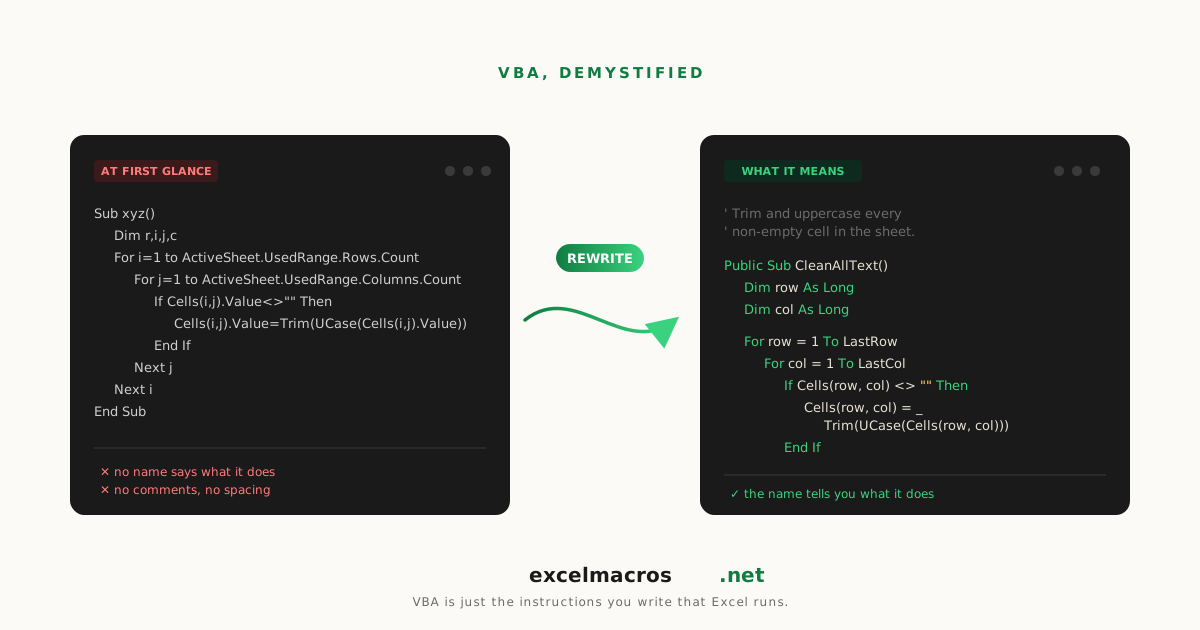
VBA macros aren't only for programmers
If you've used Excel for more than a few months, you've probably been told "you should automate that with a macro" and then quickly realized that "writing a macro" sounds like learning to code. Most people drop the idea there.
The thing the conversation skipped: you don't have to write a macro to use one. There's a thriving ecosystem of pre-built Excel macros that solve specific, repeatable problems. You install them once, run them with a keyboard shortcut, and they save you minutes-to-hours per week. No coding required.
This guide is the practical introduction. By the end you'll understand what a VBA macro is, how to install and run one safely, when to use macros versus formulas, and how to handle the small handful of macro situations where things can go wrong.
TL;DR: Key takeaways
- VBA macros are pre-written Excel automation routines. You don't have to write them; you just have to enable and run them.
- You can run any macro from
Alt + F8(Windows) orOption + F8(Mac). It opens a list; pick one, click Run. - Macros need to be enabled the first time you open a file containing them. Click Enable Content when prompted; this is a one-time-per-file decision. If there's no button to click, the file is blocked and needs unblocking first.
- Always inspect the source of unfamiliar macros before running. The .bas file is plain text. If the source is hidden or obfuscated, don't run it.
- Macros are not magic. They're scripts that operate on whatever you have selected. If you have nothing selected, they don't do anything useful.
What is a VBA macro?
VBA stands for Visual Basic for Applications. It's the programming language Microsoft built into Excel back in the 1990s and has maintained ever since. A macro is a small VBA program that runs inside Excel, has access to your worksheet data, and can do anything Excel itself can do (and a few things Excel can't natively). If you ever want to read or tweak the code yourself, Microsoft's Getting Started with VBA in Office is the authoritative reference.
Macros live inside .xlsm files (Excel Macro-Enabled Workbook). Plain .xlsx files cannot hold macros; that's a security boundary Microsoft introduced to limit accidental macro execution.
How to enable macros (one-time setup)
The first time you open an .xlsm file from outside your computer, Excel quarantines it.
Read the colour of the bar before you click anything, because Excel shows two different warnings and only one of them has a button.
Yellow bar on Windows ("Protected View", or "Security Warning - Macros have been disabled"): click Enable Editing, then Enable Content. That is the ordinary case.
Red bar on Windows ("Microsoft has blocked macros from running because the source of this file is untrusted"): there is no enable button, because the file carries an internet marker. Close the workbook, right-click the file in File Explorer, choose Properties, tick Unblock at the bottom of the General tab, then reopen it.
On Mac: open the file and click Enable Macros when the dialog asks. The Unblock checkbox is a Windows feature with no Mac equivalent.
Once cleared, the file stays trusted. You won't see the prompt again unless you delete and re-download it.
If you see a message naming your administrator instead, IT policy is the blocker and no setting on your machine will clear it. Enabling macros when there is no enable button covers all three cases in full.
How to run a macro
Once macros are enabled in your file:
Method 1: From the Macro list
- Press Alt + F8 (Windows) or Option + F8 (Mac).
- The Macro dialog opens. You see a list of available macros.
- Click the one you want, then click Run.
Method 2: Assigning to a button or shortcut For macros you use often, you can assign a keyboard shortcut or add a button to the Quick Access Toolbar. Right-click the macro in the macro dialog > Options > assign a shortcut key.
Method 3: Opening the macro's host file directly
Some workbooks (including all the ones at excelmacros.net) ship as a single-purpose .xlsm containing one macro. Open the file, the macro is right there, run it.
What macros are good at (and what they're not)
Macros are good for:
- Repeating the same operation on a different range each time. Cleanup, formatting, data manipulation.
- Operations that take many menu clicks. Like applying Freeze Panes to every sheet in a workbook.
- Operations that don't have a built-in Excel command. Like extracting all email addresses from free-form text.
- One-shot batch jobs. Like exporting every sheet as a CSV.
Macros are not great for:
- Live calculations that should update when source data changes. Use formulas for that.
- Complex cross-system integration that needs a real programming environment. Python or Power Automate is better.
- Operations that require user interaction beyond a few prompts. Macros do best with selections and one or two InputBox questions.
Are macros safe?
Macros can do anything Excel can do, plus a few things Excel can't. That includes:
- Reading and writing your data.
- Saving files to disk.
- Opening other files.
- Running shell commands (this is the dangerous one).
- Connecting to external services (network calls).
A malicious macro could exfiltrate data, install malware, or destroy your workbook. So treating macros with caution is the right instinct.
The risk drops to near zero if you only run macros from sources you trust and whose source code you can inspect. Plain-text .bas files (like the ones at excelmacros.net) are auditable: you can read the code line by line and see exactly what it does.
What to look for when auditing a macro:
| Pattern | Concern |
|---|---|
CreateObject("WScript.Shell") | Can run arbitrary OS commands. Avoid. |
Shell() | Can run external programs. Avoid. |
Auto_Open or Workbook_Open | Runs automatically when the file is opened. Suspicious. |
Network/HTTP calls (MSXML2.XMLHTTP, WinHttp) | Sends or fetches data over the internet. Investigate. |
| Heavy obfuscation, encoded strings | Hiding what the code does. Don't run. |
A clean macro reads cell values, modifies cell values, maybe shows a MsgBox. That's it. Nothing exotic.
Macro vs formula: when to use each
| Need | Use formula | Use macro |
|---|---|---|
| Live recalculation when source changes | Yes | No (macro is one-shot) |
| One-shot bulk operation | Slow (helper column + paste-values) | Fast (in-place) |
| Operation Excel doesn't have (e.g., extract emails) | Often impossible | Yes |
| Cross-sheet operations | Awkward | Easy |
| Multi-step procedure | Multiple formulas | Single macro |
A reasonable rule: if you'd be writing a formula and copy-pasting it as values, you probably want a macro instead.
Common scenarios where macros pay off
Repetitive data cleanup. Every Monday you import a CSV and clean it the same way: trim whitespace, convert text to numbers, dedupe. A macro chain does it in 5 seconds versus 5 minutes.
Multi-sheet operations. Apply the same change to all 30 tabs of a workbook. The built-in Find and Replace has a "workbook scope" option, but for anything more complex (apply Freeze Panes, autofit columns, run the same formula across tabs), a macro saves real time.
Batch exports. Save every sheet as a separate CSV. Save every chart as a PNG. These aren't built-in operations.
Custom rules. "Highlight every cell where the value is greater than 1000 and the date is after the 15th and the customer is in the priority list." Conditional Formatting can do simple cases; macros handle the complex ones.
How to install a macro from excelmacros.net
Every macro at excelmacros.net is a free .xlsm file with one macro inside.
- Visit the tool's page.
- Click Download.
- Open the
.xlsmin Excel. - Click Enable Editing, then Enable Content. If the bar is red with no button, unblock the file first.
- Press Alt + F8, pick the macro, click Run.
The full walkthrough is at How to run our tools.
How to read VBA source code (audit guide)
Every macro at excelmacros.net has a .bas file in the public repo alongside the .xlsm. The .bas is plain text. Here's how to read it for safety:
Public Sub TrimWhitespaceAllCells()
    Dim r As Range
    Dim cell As Range

    Set r = Selection         ' grabs whatever you have selected

    For Each cell In r.Cells  ' loop through each cell
        If Not IsEmpty(cell.Value) Then
            cell.Value = ...   ' modify the cell value
        End If
    Next cell
End Sub
Read the source for:
- What does it loop over? (
For Each cell In r.Cells) - What does it modify? (
cell.Value = ...) - Does it call anything external? (Look for
CreateObject,Shell, network calls.) - Does it run automatically? (Look for
Auto_Open,Workbook_Open.)
A trustworthy macro: loops over your selection, modifies cell values, shows a result. No external calls, no auto-run.
Frequently asked questions
Why do I have to enable macros every time?
You shouldn't. Once you click "Enable Macros" on a specific file, Excel remembers it as trusted. If you're being prompted every time you open the same file, your IT department may have configured Excel to not remember trust decisions; you'll need to ask them to relax that setting.
Can I write my own macros?
Yes, and the easiest way to start is by recording one. Developer tab > Record Macro. Do an action manually. Click Stop. The recorder writes the VBA for you. You can then edit it in the VBA editor (Alt+F11). It's not the cleanest VBA but it's a starting point and reads well enough to learn from.
Do macros work in Excel for the web (online)?
No. Excel for the web (the browser version) does not support VBA macros. Macros run only in the desktop version of Excel (Windows or Mac). Excel for iOS and Android also do not run macros.
Can macros work in Google Sheets?
Google Sheets has its own scripting language called Google Apps Script (JavaScript-based). VBA macros do not run in Google Sheets. The macros at excelmacros.net are Excel-only.
What if a macro errors mid-run?
Most well-written macros include error handling that shows a friendly popup if something goes wrong. The macro stops, your data is in whatever state it was at the error, and you can Ctrl+Z to revert. If a macro errors silently or doesn't undo cleanly, work on a copy of the file before running it.
Can I edit a macro to change its behavior?
Yes. Press Alt + F11 to open the VBA editor, find the macro in the Project pane on the left, and edit the code. Save the file. Re-run. For excelmacros.net macros, the .bas source is also in the public repo, so you can fork and modify freely.
Macros that fit the "non-coder" profile
These macros at excelmacros.net are commonly the first ones non-coders try and find immediately useful:
- Remove Duplicates by Multiple Columns: smarter dedupe than Excel's built-in.
- Trim Whitespace From All Cells: fixes the most common VLOOKUP mystery.
- Find and Replace Across All Sheets: workbook-wide text replacement with a count.
- Freeze Top Row on All Sheets: apply Freeze Panes consistently across a multi-tab workbook.
- List All Sheet Names: generate a clickable index for big workbooks.
Each is a single-purpose macro. Install once, run when needed, no coding required.
What to do next
If you've never run a macro, start with one tool from the list above. The first run takes 30 seconds of setup. After that, every subsequent use is a single keyboard shortcut.
If you're worried about security, audit the .bas source for the macro before running. Each tool page links to the source on GitHub. The code is short (50 to 150 lines per macro) and readable even without VBA experience.
For a deeper view of which tools fit which workflow, see The Complete Guide to Cleaning Up Data in Excel.