Excel for Accountants: A Guide to Faster Month-End Close
How accountants use Excel for faster month-end close, cleaner reconciliations, and audit-ready workbooks. Free VBA macros for the repetitive bits.
2026-04-28
Why accounting and Excel are stuck together
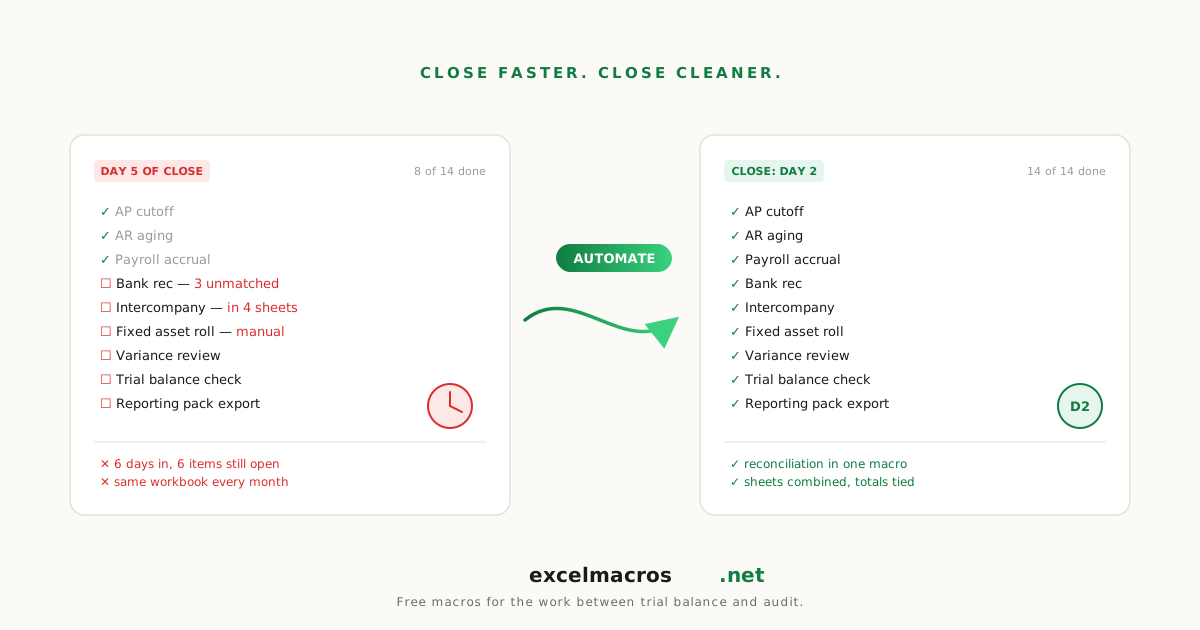
Every modern accounting platform claims to replace Excel. None of them do. The general ledger lives in the ERP; the schedules, recons, adjusting entries, and management commentary live in Excel. The 5-day month-end close that everyone wants to compress to 3 days runs through dozens of Excel files between trial balance and final pack.
This guide is for accountants who already know Excel well enough to find the basic tutorials boring. It's for the staff accountant doing month-end recons, the senior on the close calendar, the controller signing off on the package. The goal: a sharper toolkit for the bits of close work that recur every cycle.
TL;DR: Key takeaways
- Month-end close has a heavy "repeatable Excel" component: GL exports, recons, journal entry prep, schedule rollovers.
- A small set of free macros can compress recurring cleanup from minutes to seconds per task. Across a 5-day close, that's hours of total time.
- The biggest wins for accountants: handling QuickBooks/SAP exports (text-stored numbers, accounting parens negatives, mixed date formats), bulk find/replace across periods, and freeze-before-share for audit copies.
- Macros work offline, no data leaves your laptop. Important for SOX-compliant environments and audit-trail requirements.
The accounting-Excel problem set
Most accounting Excel work falls into:
- General ledger and trial balance work: imports, reclasses, account mapping, schedule rollovers.
- Reconciliations: comparing GL to subledger, bank to GL, intercompany.
- Adjusting entries: prep, posting, review.
- Reporting and audit prep: variance analysis, financial statement support, audit schedule prep.
Macros help most with categories 1, 2, and 4. Category 3 (adjusting entries) is mostly about judgment, not Excel speed.
Category 1: General ledger and trial balance work
The GL export is where most close-related Excel work starts. The export comes through with:
- Currency-formatted numbers stored as text (
$1,234.56). - Accounting parens for negatives (
(789)). - Mixed date formats if the ERP locale doesn't match Excel's.
- Merged cells if the export was formatted for human reading.
- Rows that sum to "Total" but aren't tagged as such.
The macro toolkit:
- Convert Text to Numbers: handles currency-symbol text and accounting parens (which become real negative numbers, not stay as text). The single most useful macro for accounting cleanup.
- Standardize Mixed Date Formats: cross-locale date parsing so SUMIFS by month works.
- Unmerge Cells and Fill Down: pre-pivot prep for trial balances with merged class/division headers.
- Trim Whitespace From All Cells: account number matching that fails because of trailing whitespace is a perennial recon mystery.
- Remove Blank Rows: get rid of "Total" rows that aren't tagged as such (filter to find them, delete or move them aside).
A typical 84,000-row monthly GL cleanup goes from 25 minutes of clicking to about 90 seconds with the macro chain.
Category 2: Reconciliations
The bank rec, the AR aging vs GL, the intercompany rec. These are all "compare two lists, find the differences" jobs.
The macro toolkit:
- Remove Duplicates by Multiple Columns: when one side of the rec has duplicate entries the other side doesn't.
- Highlight Duplicate Values: visualize duplicates before deleting.
- Highlight Blank Cells: find recon items where one side is missing data.
- Find and Replace Across All Sheets: apply a vendor-name normalization across every tab of a workbook.
- Bulk Find and Replace From Table: when you have 30+ vendor-name normalizations to apply, this reads them from a lookup table and applies all of them in one pass.
The classic example: AR aging vendor names don't match GL vendor names because the AR system uses "Acme Corp" while the GL uses "Acme Corporation". Build a lookup table with 30 such normalizations, run Bulk Find and Replace From Table, and the recon's text mismatches drop to near zero in one pass.
Category 3: Adjusting entries (where macros stay out of the way)
Adjusting entries are about judgment: knowing which accruals to record, when to reverse, how to document the support. Excel doesn't help with the judgment.
The macros that do help indirectly:
- Add Totals Row to Numeric Columns: drop a debit/credit totals row to confirm the entry balances.
- Convert Formulas to Values: freeze the entry before posting so the values are immutable.
These don't help you decide what to accrue. They help with the mechanical "did the debit equal the credit" check.
Category 4: Reporting and audit prep
Pre-close package, audit binders, board pack support.
The macro toolkit:
- Highlight All Formula Cells: when handing off a schedule to the auditor, paint every formula cell so they can see at a glance which numbers are calculated vs typed.
- Highlight Cells With Comments: find the breadcrumbs (PBC notes, sign-offs).
- Convert Formulas to Values: freeze the audit copy so the auditor can't accidentally break dependencies.
- Freeze Top Row on All Sheets: consistent header behavior across the audit binder.
- List All Sheet Names: generate a clickable index for a 30-tab audit workbook.
A typical pre-audit prep that took 30 to 45 minutes (freeze every tab, autofit, generate index, freeze formulas on summary tabs, save) becomes about 90 seconds.
A typical month-end close week with the macro toolkit
Day 1 (close opens): GL export, trial balance import.
- Run Convert Text to Numbers, Standardize Dates, Unmerge Cells, Remove Blank Rows.
- Time: 2 minutes. Pre-macro: 30 to 45 minutes.
Day 2 (recons): bank rec, AR aging vs GL.
- Run Bulk Find Replace From Table for vendor-name normalizations.
- Run Highlight Duplicates to spot duplicate entries.
- Time: 8 minutes. Pre-macro: 35 minutes.
Day 3 (adjusting entries): prep entries, get sign-off.
- Run Add Totals Row to confirm debit/credit balance.
- Time: 30 seconds per entry.
Day 4 (reporting): build the pre-close package.
- Run Auto-Pivot for the variance analysis.
- Run Add Totals Row on subtotals.
- Run AutoFit All Columns and Freeze Top Row All Sheets.
- Time: 5 minutes. Pre-macro: 25 minutes.
Day 5 (sign-off and audit prep): lock down, prep for review.
- Run Convert Formulas to Values on summary tabs.
- Run List All Sheet Names to generate the index.
- Run Highlight All Formula Cells before handing to the auditor.
- Time: 3 minutes. Pre-macro: 30 minutes.
Total time saved across a 5-day close: 2 to 3 hours.
SOX-compliance and audit-trail considerations
The macros at excelmacros.net run entirely offline:
- No network calls (auditable in the .bas source).
- No data leaves your laptop.
- The .bas source is plain text and version-controlled, so the audit trail of "what does this macro do" is the GitHub commit history.
For SOX-compliant environments, this matters. Most "online Excel tools" send your data to a server, which is a non-starter for any environment that processes financial data subject to internal control. The macros sidestep that entirely.
If your IT or compliance team needs to whitelist these macros, point them at:
- The public GitHub repo for the source.
- The "no network calls, no shell calls, no
Auto_Open" claim, which is verifiable in the source. - The fact that each macro is a single-purpose
.xlsm(no shared module surface area).
Common scenario: cleaning a SAP GL extract
Monthly extract from SAP. Comes with:
- Numbers as text with European formatting (
1.234,56for thousands separator + decimal). - Dates in
28.04.2026format. - Merged class/division headers.
- Trailing whitespace on account names.
The macro chain:
- Trim Whitespace From All Cells on the whole sheet.
- Unmerge Cells and Fill Down on the class column.
- (Edit
convert-text-to-numberssource for European decimal separator, or do a Find/Replace to swap,with.first.) - Convert Text to Numbers on amount columns.
- Standardize Mixed Date Formats on the date column, picking format
2(D/M/Y). - Remove Duplicates by Multiple Columns using account + period + amount.
- Build pivot.
About 3 minutes versus 60 to 90 minutes manual.
How macros fit alongside the audit team
The audit team's workflow is heavily Excel-centric. A few macros pair well with audit deliverables:
- Pre-audit hand-off: freeze formulas on summary tabs (so the auditor doesn't accidentally break dependencies) with Convert Formulas to Values.
- PBC list management: highlight cells with comments to spot which schedules have outstanding PBC items.
- Tickmark traceability: count and sum cells by color to verify tickmark totals against an underlying expectation.
If the auditor uses similar cleanup macros on their side, the workflow gets even smoother because the data shapes match.
Frequently asked questions
Will these work with QuickBooks Online exports?
Yes. QBO exports come through with the same currency-symbol text and accounting parens negatives that Convert Text to Numbers handles. Standardize Dates handles QBO's date format. The macro chain works identically for desktop and online QuickBooks exports.
What about NetSuite, SAP, Oracle?
Yes for all three. The cleanup macros are agnostic to the source system. They process whatever data you have in front of you. The only system-specific edge case is European decimal formatting (1.234,56), which requires either a Find/Replace pre-step or a small edit to the .bas source.
Will macros from excelmacros.net break SOX or audit controls?
Not on their own. The macros only modify the workbook based on what you've selected. They don't write to other files (with one exception: Export Each Sheet to CSV). They don't connect to networks. They don't auto-run. So they're equivalent to manual operations, just faster.
If your control framework requires every workbook modification to be reviewed by a second pair of eyes, that's still required when using macros. The macro just makes the modification faster.
Can the macros handle multi-currency?
The cleanup macros (Convert Text to Numbers, Standardize Dates) handle whatever's in the cells you select. Multi-currency comes through fine if your data has currency identifiers in separate columns. If currency is embedded in the amount column ($1,234, €999), Convert Text to Numbers strips the currency symbol; you keep the currency identifier in a separate column for tracking.
How do I add these to my Personal Macro Workbook so they're always available?
Press Alt + F11 to open the VBA editor. Find the module containing the macro in the source .xlsm. Right-click and Export. Open Personal.xlsb (your Personal Macro Workbook), right-click in its VBA project, Import the .bas file. Save Personal.xlsb. Now the macro is available in every Excel session.
What to do next
For accountants, the highest-leverage starting point is Convert Text to Numbers. It fixes the single most common cleanup problem in GL exports (text-stored numbers and accounting parens negatives) in one pass. Install it, use it on your next month-end's GL extract, and you'll have your first concrete time-saving experience with macros.
For broader coverage, see the full catalog at /audience/accounting, the cleanup deep-dive at The Complete Guide to Cleaning Up Data in Excel, and the macro intro at How to Use Excel VBA Macros Without Knowing How to Code.