The Complete Guide to CSV Imports in Excel
Pillar guide to importing CSV files into Excel: the import wizard, Power Query, and free macros that fix the typical post-import data mess.
2026-04-28
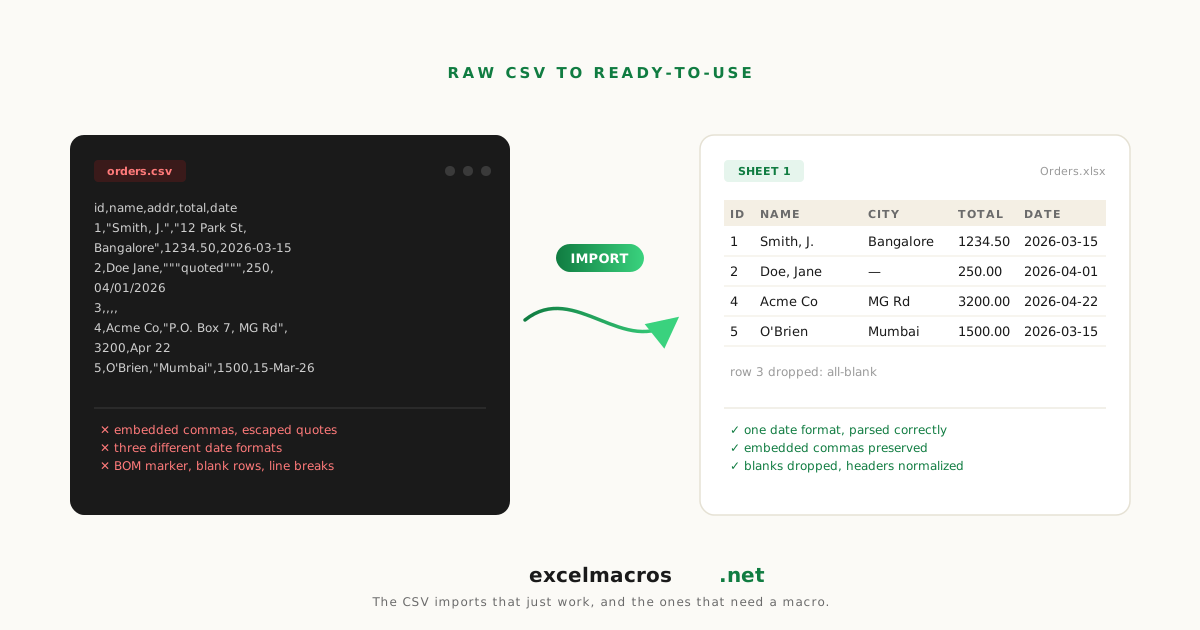
Why CSV imports always need cleanup
CSV stands for Comma-Separated Values. The format is simple. The problems are not.
Every CSV import into Excel runs into one or more of these:
- Numbers stored as text (because the source system marked the column as text).
- Wrong-locale dates (US format dates in a UK Excel, or vice versa).
- Currency symbols on amounts that should be numbers.
- Trailing whitespace that breaks VLOOKUP.
- Blank rows from the source system's record separator convention.
- Embedded line breaks in text fields that confuse downstream analysis.
This guide is the complete map: how to do the import correctly, what to expect to clean up, and the free macros that handle the cleanup in seconds instead of minutes. For the official mechanics, Microsoft documents how to import or export text and CSV files. The sections below focus on the cleanup Excel leaves behind.
TL;DR: Key takeaways
- Excel's "Open" command for CSVs uses the locale settings of your Excel installation. Cross-locale CSVs almost always need cleanup after.
- Power Query ("From Text/CSV") handles cross-locale parsing better but takes more setup.
- The seven most common post-import cleanup tasks all have one-click macro solutions.
- Always do cleanup in a sensible order: structural first (blank rows/cols, merges), then text (whitespace, line breaks), then numeric (text-to-number, dates), then dedupe.
- Always work on a copy of the imported data so you can re-import if cleanup goes wrong.
The 3 ways to import a CSV
Method 1: File > Open
The fastest way. Excel opens the CSV using your locale settings. Numbers, dates, and special characters are interpreted based on your system's defaults.
Pros: Fast. No setup.
Cons: Cross-locale data gets misinterpreted silently. Date formats from a different locale come in as text. Numbers with non-default decimal separator get corrupted.
Method 2: Data > From Text/CSV (Power Query)
Goes through Power Query for the import.
- Data > Get & Transform > From Text/CSV.
- Pick the file. A preview opens.
- Set the File Origin (encoding), Delimiter, and Data Type Detection options.
- Click Transform Data to open Power Query for full control, or Load to bring it in directly.
Pros: Cross-locale support. Refreshable. Better encoding handling.
Cons: Setup overhead. The Power Query interface is unfamiliar to most users.
Method 3: Drag-and-drop
Drag the CSV file onto an open Excel window. Excel opens it like Method 1.
Pros: Fastest of all.
Cons: Same drawbacks as Method 1.
The 7 common post-import cleanup tasks
After a CSV import, expect to do some combination of these:
1. Trim whitespace
Web-pasted and CSV-imported data often has trailing or non-breaking spaces. VLOOKUP fails on these silently.
Fix: Trim Whitespace From All Cells.
Deep dive: How to Trim Whitespace from Cells in Excel.
2. Convert text to numbers
Numeric columns come in as text. SUMIF returns 0. Math operations error.
Fix: Convert Text to Numbers.
Deep dive: How to Convert Text to Numbers in Excel.
3. Standardize dates
Dates in the wrong format for your locale come in as text. Date filters return zero matches. Charts treat dates as strings.
Fix: Standardize Mixed Date Formats.
Deep dive: How to Standardize Mixed Date Formats in Excel.
4. Remove blank rows
CSV exports often include blank separator rows between groups.
Fix: Remove Blank Rows.
Deep dive: How to Remove Blank Rows in Excel.
5. Delete empty columns
Wide CSVs have many columns the source system always exports but you don't need.
Fix: Delete Empty Columns.
Deep dive: How to Delete Empty Columns in Excel.
6. Remove line breaks
Text columns with Alt+Enter or web-paste line breaks confuse downstream analysis.
Fix: Remove Line Breaks From Cells.
Deep dive: How to Remove Line Breaks from Cells in Excel.
7. Standardize capitalization
For dedupe and lookup, inconsistent case in name and email columns breaks matches.
Fix: Convert Text to Proper Case for names, Change Case to UPPERCASE or lowercase for codes and emails.
The right order to clean a CSV
Don't shotgun random cleanup. Run them in an order that builds on previous steps:
Step 1: Structural fixes
- Remove Blank Rows: get rid of separator rows.
- Delete Empty Columns: drop unused columns.
- Unmerge Cells and Fill Down: if the CSV came from a PDF or formatted source.
Step 2: Text fixes 4. Trim Whitespace From All Cells: fix invisible whitespace. 5. Remove Line Breaks From Cells: flatten multi-line cells. 6. Standardize capitalization with Convert Text to Proper Case or Change Case to UPPERCASE or lowercase.
Step 3: Numeric and date fixes 7. Convert Text to Numbers: fix amount columns. 8. Standardize Mixed Date Formats: fix date columns. 9. Clean Phone Numbers: for phone columns.
Step 4: Dedupe 10. Remove Duplicates by Multiple Columns: by the columns that matter for your data.
A typical 84,000-row weekly CSV cleanup goes from 25 to 45 minutes manually to about 90 seconds with the chain.
Common scenarios
Cross-locale CSV (US data, UK Excel)
US system exports 04/28/2026. UK Excel can't parse it because UK locale expects D/M/Y.
- Import via File > Open. Date column comes in as text.
- Run Standardize Mixed Date Formats, pick
1for US format. - Done. Real Excel dates with consistent display.
Currency-formatted amounts as text
QuickBooks-style export with $1,234.56 and (789.00) for credits.
- Import via File > Open. Amount column comes in as text.
- Run Convert Text to Numbers.
- Macro strips
$and commas, treats(789)as-789. Real numbers.
CSV with embedded newlines in notes column
Notes column has Alt+Enter line breaks because the source system stored multi-line records.
- Import.
- Run Remove Line Breaks From Cells on the notes column.
- Each note now single-line.
Wide CSV (47 columns, 22 empty)
Ad platform CSV with 47 columns, your account uses 25.
- Import.
- Run Delete Empty Columns on the data block.
- 22 columns disappear. Pivot becomes manageable.
When Power Query is the better answer
If you import the same CSV format every week (recurring pipeline), build a Power Query once and refresh it weekly. Power Query or a macro walks through which jobs suit which tool.
- Data > From Text/CSV.
- Configure the import (date locale, type detection, encoding).
- Add transformation steps in Power Query (rename columns, change types, filter rows).
- Close & Load.
Next week, Refresh the query. Power Query re-runs all your transformations on the new file.
The one-shot macros are for ad-hoc imports or first-time pipeline setups. Power Query is for recurring weekly/monthly imports of consistent shape.
Frequently asked questions
Why do dates come in as text from a CSV?
CSV is a plain-text format with no type information. Excel guesses the type per cell. If the date format doesn't match the locale's expectation, Excel falls back to treating it as text. Cross-locale CSVs almost always have this issue.
Why does SUMIF return 0 after a CSV import?
The numeric column came in as text. Run Convert Text to Numbers.
What about UTF-8 encoding issues (weird characters in non-English text)?
When importing with Data > From Text/CSV, set File Origin to 65001: Unicode (UTF-8). This handles UTF-8 correctly. The basic File > Open route uses your system locale's default encoding, which can corrupt non-Latin scripts.
What about CSVs with semicolon separators?
Common in European locales. Excel's File > Open detects semicolons in many locales. If yours doesn't, use Data > From Text/CSV and pick semicolon manually.
Can the macros handle CSVs with quoted strings containing commas?
The macros operate on data already imported into Excel cells. Excel's CSV import handles quote escaping correctly during import. By the time you run a macro, the data is in cells.
What about really big CSVs (over 1 million rows)?
Excel has a 1,048,576 row limit per sheet. For larger files, use Power Query to filter or aggregate during import, or split the file before importing.
What to do next
For cleanup specifically, see The Complete Guide to Cleaning Up Data in Excel. For audit work after a major import, How to Audit an Inherited Excel Workbook. For the cleanup tools by category, /category/data-cleanup.