How to Find Values in One Excel Column but Not Another
To find values in one Excel column but not another, use COUNTIF to flag missing matches or compare both lists with the free macro.
2026-08-24
How to find values in one Excel column but not another
To find values in one Excel column but not another, use COUNTIF to test whether each item appears anywhere in the second list. If you need the answer in both directions, the Compare Two Columns macro highlights unmatched cells in both lists at once.
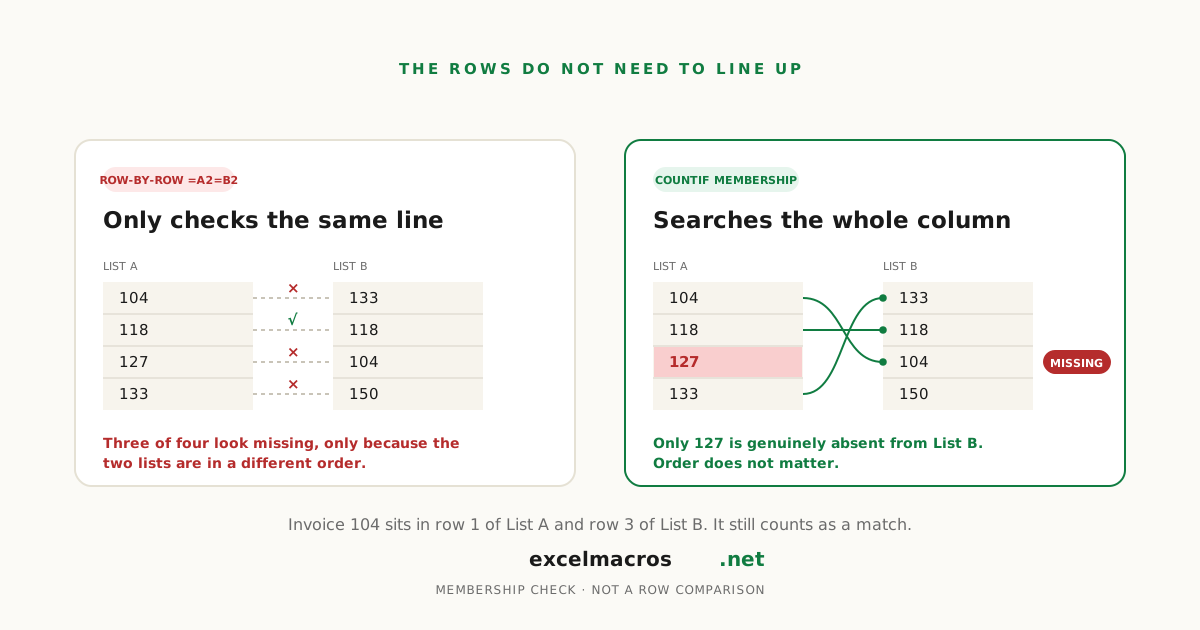
This is a membership check, not a row-by-row comparison. If invoice 104 appears in A2 and B57, it counts as a match. The row numbers don't need to line up.
TL;DR: Key takeaways
- Use
=IF(COUNTIF($B$2:$B$100,A2)=0,"Missing","")to flag values in column A that don't appear in column B. - Reverse the ranges to check column B against column A.
- Use the Compare Two Columns macro when you want both directions highlighted without helper columns.
COUNTIFignores capitalization but notices extra spaces. The macro ignores capitalization and leading or trailing spaces.
Method 1: Find missing values with COUNTIF
COUNTIF is the simplest built-in method because it checks the whole second list, not just the cell on the same row.
Assume your first list is in A2:A100 and the second is in B2:B100.
- Enter
=IF(COUNTIF($B$2:$B$100,A2)=0,"Missing","")in C2. - Fill the formula down beside column A.
- Filter column C for Missing to see values that appear in A but nowhere in B.
- To check the opposite direction, enter
=IF(COUNTIF($A$2:$A$100,B2)=0,"Missing","")in D2 and fill down.
The logic is plain: count how many times A2 appears in column B. A result of zero means the value is missing. Microsoft's COUNTIF reference confirms that the function counts cells meeting one criterion and that text matching isn't case-sensitive.
One catch: spaces and hidden characters still matter. Acme Ltd and Acme Ltd may look identical while Excel treats them differently. Clean pasted data before trusting the result.
Method 2: Compare both columns with the free macro
The free macro is faster when you want a visual answer in both directions and don't need formulas left behind.
- Put both lists on the same worksheet, then exclude the header cells from your selection.
- Select two adjacent columns, or select the first range and Ctrl-click on Windows or Cmd-click on Mac to add the second.
- Run Compare Two Columns from the downloaded
.xlsmfile. - Review the yellow cells and the message showing how many values are missing from each list.
The macro compares every nonblank value against the entire other column. It ignores capitalization and trims leading and trailing spaces, so ACME matches acme. It doesn't change the values themselves.
The yellow fill is a static snapshot. If you edit either list afterward, run the macro again. Also keep a clean copy if the columns already use meaningful fill colors, because the macro paints unmatched cells yellow and VBA doesn't provide a normal Ctrl+Z undo for this tool.
Need the opposite answer, values that appear in both columns? Use the duplicate-between-two-columns method instead.
A real two-list comparison
An operations analyst has 742 active customer IDs from the CRM and 718 IDs from the billing system. The first COUNTIF check flags 29 CRM customers missing from billing. Reversing the formula finds five billing IDs absent from the CRM.
For a one-off month-end check, the macro highlights all 34 exceptions in place and reports the two counts separately. The analyst can investigate the 29 possible billing omissions without mixing them up with the five possible closed accounts still hanging around in billing. This is also the same pattern used when reconciling invoices and payments in Excel.
FAQ
What formula finds values in column A that are not in column B?
Use =IF(COUNTIF($B$2:$B$100,A2)=0,"Missing","") beside the first value in column A, then fill down. COUNTIF searches the full range in column B. When it finds zero matches, the formula labels that value as missing, even if the lists use different row orders.
How do I compare two Excel columns for differences in both directions?
Run one COUNTIF formula from A to B and a mirrored formula from B to A. For a quicker one-off check, the Compare Two Columns macro checks both directions in one run, highlights unmatched cells yellow, and reports a separate count for each list.
Does this compare the same row or the whole column?
It compares against the whole other range. A value in A2 can match B57 and won't be flagged. If you need a row-by-row test instead, use =A2=B2 or =IF(A2=B2,"Match","Different") and fill it down. Use that version only when position matters.
Why do two values that look the same still show as different?
Extra spaces, tabs, nonbreaking spaces, or lookalike punctuation can make values look equal while Excel stores them differently. The macro handles capitalization and outer regular spaces. For messier pasted data, run Trim Whitespace From All Cells before comparing the lists again.
What to do next
For a live worksheet check, keep the two COUNTIF columns so the result updates with your lists. For a fast snapshot, download Compare Two Columns and highlight every value in one Excel column but not another, in both directions, with one run.