How to Highlight Duplicates Between Two Columns in Excel
To highlight duplicates between two columns in Excel, select both and use Conditional Formatting's Duplicate Values rule, or a macro for a one-off check.
2026-08-12
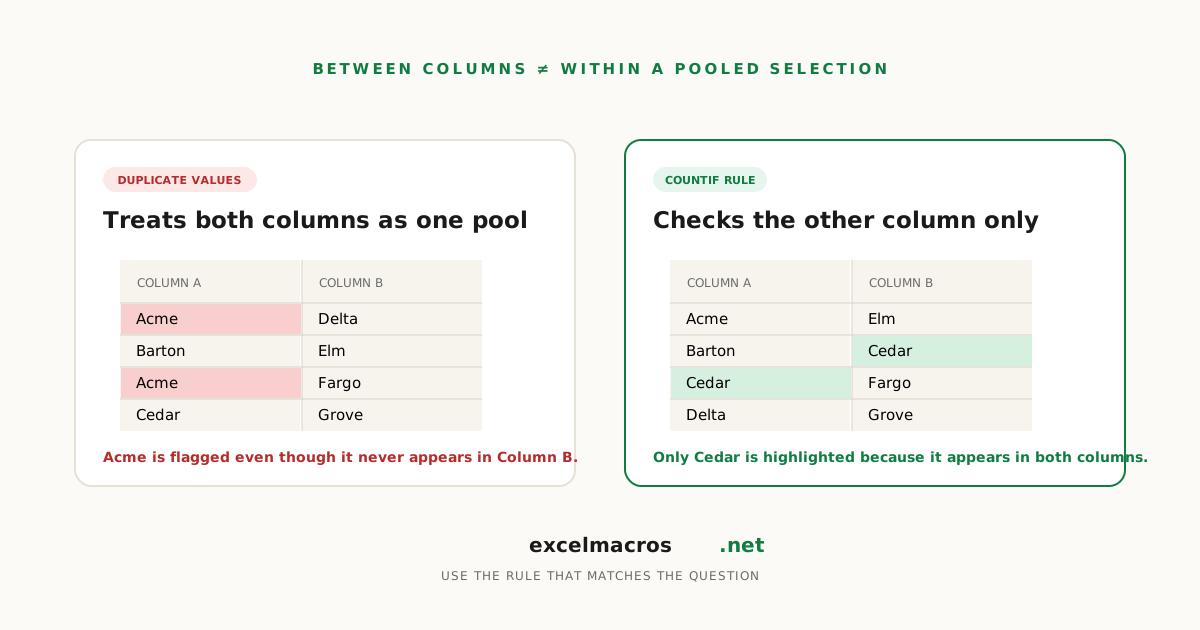
The "between, not within" problem
You've got two vendor lists and want to see which names show up in both. Select both columns, run the standard Duplicate Values highlight, and it lights up more than expected.
That's because Excel doesn't highlight duplicates between your two columns. It pools everything you selected into one list and highlights any value appearing twice or more anywhere in it, including entries duplicated only within one column that never touch the other at all.
TL;DR: Key takeaways
- Conditional Formatting's Duplicate Values rule pools two selected columns. A value duplicated only within one column gets highlighted too.
- For only-between-columns matching, use a COUNTIF formula rule instead.
- A free macro does the same pooled highlight as Conditional Formatting, as a one-off with a clean undo.
- If you want the opposite, rows that don't match between two lists, that's a different tool.
Method 1: Conditional Formatting, the pooled version
- Select both columns (adjacent: click-drag; non-adjacent: Ctrl-click).
- Home > Conditional Formatting > Highlight Cells Rules > Duplicate Values.
- Pick a color, click OK.
Per Microsoft's guide, the rule treats a two-column selection as one combined pool. The catch: if "Acme" appears twice in column A and never in B, it still lights up.
Method 2: COUNTIF, for only-between-columns matching
Say your lists are A2:A50 and B2:B50.
- Select A2:A50. Home > Conditional Formatting > New Rule > Use a formula.
- Enter
=COUNTIF($B$2:$B$50, A2)>0, pick a format. - Repeat on B2:B50 with
=COUNTIF($A$2:$A$50, B2)>0.
Now a name repeated only within column A, with no match in B, stays uncolored. This is the surgical version of Method 1.
Method 3: The free macro
Download Highlight Duplicate Values. Free .xlsm, runs offline.
- Select both columns, Alt + F8, pick
HighlightDuplicates, click Run. - Every value appearing twice or more in the combined selection gets a light red fill.
- Ctrl + Z to revert.
It pools the selection exactly like Method 1, same within-column catch. The difference is workflow: Conditional Formatting leaves a live rule that recalculates on every edit, which is confusing on a file you're still working in. The macro paints once and one undo removes every trace, better for a snapshot check.
Duplicates or differences?
Two questions sound related but need opposite tools. Highlighting duplicates (above) marks what the columns have in common, useful when merging two lists. Compare Two Columns does the reverse: it highlights what's missing from the other column, useful for reconciliation, like an invoice with no matching payment (see reconciling invoices and payments). Picking the wrong one doesn't error, it just shows the opposite of what you wanted.
A real example
An operations manager merges vendor lists from two acquired branches, 340 and 290 rows. Conditional Formatting's Duplicate Values lights up 96 cells; switching to the COUNTIF version narrows that to 61 true cross-branch matches, since several hits were just "Office Depot" entered twice within one branch's own list.
Frequently asked questions
How do I highlight duplicates between two columns without same-column repeats?
Use a Conditional Formatting rule built from a formula, not the built-in Duplicate Values option. =COUNTIF(range_of_second_column, first_cell)>0 on the first column, mirrored on the second, counts only matches against the other column.
Does the built-in Duplicate Values rule compare two columns against each other?
Not exactly. It pools whatever you select into one list and highlights any value appearing twice or more in that pool, regardless of which column each instance came from.
What's the difference between highlighting duplicates and comparing two columns?
Highlighting duplicates shows what the columns share. Compare Two Columns shows what's missing from the other list. Pick based on whether the useful rows are the matches or the mismatches.
Will this catch duplicates with different capitalization or extra spaces?
Capitalization doesn't matter; both methods treat "Acme" and "ACME" as the same. Extra spaces do: a trailing space makes "Acme " a different string. Run Trim Whitespace From All Cells first on pasted data.
What to do next
Start with Method 1 for a quick look, switch to COUNTIF once you need precision. If you actually wanted the mismatches, Compare Two Columns is the tool for that. Once you've found what you're after, Remove Duplicates by Multiple Columns handles the cleanup.