Excel for Teachers: Save Hours on Admin
How K-12 and university teachers use Excel for grades, attendance, and class admin. Free VBA macros for the repetitive parts of teaching paperwork.
2026-04-28
The teacher-Excel problem nobody talks about
Teaching is a job. Grading, attendance, parent communication, IEP tracking, progress reports, that's the other half of the job. Teachers spend an estimated 7 to 10 hours per week on admin work, much of it in spreadsheets, and almost none of it is what they trained for. The official school-issued tools (PowerSchool, Skyward, Infinite Campus) cover some of this; the rest lives in personal Excel files that teachers maintain on their own time.
This guide is for the teacher who already uses Excel for some classroom admin and wants to spend less time on it. The goal: a small toolkit of free macros that handle the most common repetitive tasks. No coding required. Works on the school laptop without IT involvement.
TL;DR: Key takeaways
- Most teacher Excel work is structured: grade books, attendance rosters, parent contact lists, score-to-letter conversions.
- A small set of free macros covers 80% of the repetitive bits: grade calculation, missing-entry detection, name standardization, simple stats.
- Macros run offline. No data leaves your laptop. Important when student data is involved.
- The setup is one-time and takes about 30 seconds. After that, every use is a single keyboard shortcut.
- Common time saved: 2 to 4 hours per quarter on grading admin alone.
The four bins of teacher Excel work
Most teaching Excel work falls into one of:
- Grade book maintenance: tracking scores per assignment, calculating averages, converting to letter grades.
- Class admin: rosters, attendance, contact lists, parent communications.
- Reporting: progress reports, parent-teacher conference summaries, end-of-year summaries.
- Data entry cleanup: fixing the messy data that comes out of school-issued systems.
Macros help most with categories 1, 3, and 4.
Category 1: Grade book maintenance
The grade book is the central artifact of teaching admin. Most teachers maintain one in Excel even when their school has a separate gradebook system, because the school system is rigid and Excel is flexible.
Common tasks:
- Enter scores for assignments.
- Calculate weighted averages.
- Detect missing scores.
- Convert numeric scores to letter grades.
- Generate per-student summaries.
The macro toolkit:
- Highlight Blank Cells: paint every blank cell light red. Walk through, distinguish "missing assignment" from "excused absence", fill in or mark accordingly.
- Quick Statistics Summary: drop mean, median, mode, standard deviation next to a column of scores.
- Letter Grade From Numeric Scores: convert percentages to A/B/C/D/F using the cutoffs your school uses.
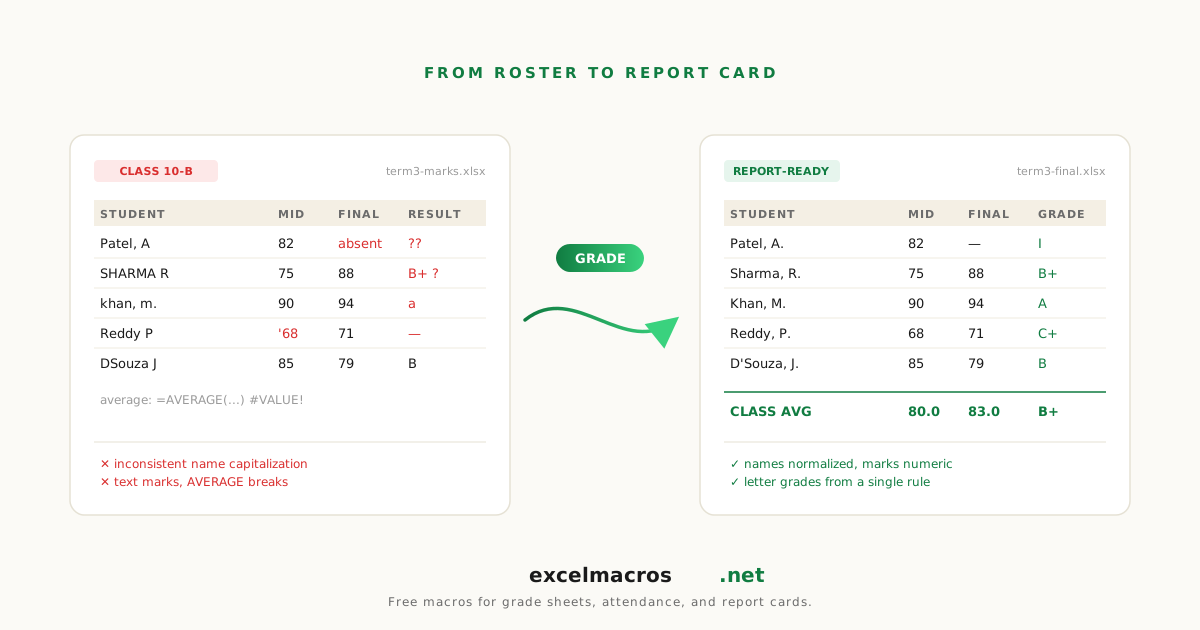
A typical end-of-quarter routine: open grade book, run Highlight Blank Cells (find missing entries), fill them in from paper records, run Quick Statistics (decide if the assignment was unusually hard before scaling), run Letter Grade From Numeric Scores. About 4 minutes versus 25 minutes of formula juggling.
For the deep dive: How to Calculate Letter Grades from Numeric Scores in Excel.
Category 2: Class admin and rosters
Rosters from the school system come with inconsistent formatting. Names in LASTNAME, FIRSTNAME format. Mixed capitalization. Sometimes middle names. The bulk-email tool wants First Name and Last Name in separate columns. Mail merge wants Title Case names.
The macro toolkit:
- Split Full Names Into First and Last: split
Sharma, PriyaorMaria Sanchezinto two columns. - Convert Text to Proper Case: standardize
JOHN SMITHandjane doetoJohn SmithandJane Doe. - Trim Whitespace From All Cells: fix invisible spaces that break VLOOKUP between rosters.
- Clean Phone Numbers: normalize parent contact numbers for SMS reminder tools.
A weekly substitute teacher placement coordinator can shave 4 to 5 minutes per upload. A homeroom teacher syncing rosters across three platforms saves about 15 minutes per syncing session.
Category 3: Reporting
Progress reports, parent-teacher prep, end-of-quarter summaries.
The macro toolkit:
- Quick Statistics Summary: per-student or per-assignment stats.
- Letter Grade From Numeric Scores: convert overall scores to grades.
- Add Totals Row to Numeric Columns: drop a totals row at the bottom of a class summary.
- List All Sheet Names: if you maintain one tab per class section, generate a clickable index.
- Convert Formulas to Values: freeze the report before sending to administrators (so they can't accidentally break formulas).
For an end-of-quarter pack with 4 sections of 30 students each, the time saved is about 30 minutes per pack, partly from the macro speed and partly from no longer rebuilding the same per-student summary formulas every quarter.
Category 4: Data entry cleanup
School-issued systems often produce CSV exports that need cleanup before they're useful. Inconsistent dates. Numbers as text. Trailing whitespace. Blank rows.
The macro toolkit:
- Trim Whitespace From All Cells
- Convert Text to Numbers
- Standardize Mixed Date Formats
- Remove Blank Rows
For one teacher who imports a weekly attendance CSV from the district system: the cleanup chain runs in 5 seconds versus 4 minutes manual.
A typical school-year week with the macro toolkit
Monday: import the week's attendance from the district system.
- Run cleanup chain. Filter to absences. Send follow-up emails to parents.
- Time: 5 minutes. Pre-macro: 20 minutes.
Wednesday: enter quiz scores into the grade book.
- Run Highlight Blank Cells to confirm I've entered every student's score.
- Time: 10 seconds. Pre-macro: scrolling and squinting for 5 minutes per quiz.
Friday afternoon: end-of-week class summary email to parents.
- Run Quick Statistics on the week's quizzes.
- Run Add Totals Row on the running tally.
- Save as PDF, send.
- Time: 4 minutes. Pre-macro: 12 minutes.
End of quarter: progress reports.
- Run Letter Grade From Numeric Scores on each section.
- Run mail merge with the resulting grades and personalized comments.
- Time: 25 minutes. Pre-macro: 90 minutes.
Total weekly time saved: 30 to 60 minutes. End-of-quarter time saved: another 60 to 90 minutes. Across a school year, easily 50 to 80 hours back.
Why offline-only macros matter for teacher data
Student data has special protection requirements (FERPA in the US, GDPR in Europe, similar in other regions). Teachers are often forbidden from uploading grade books to web-based tools, even free ones. The macros at excelmacros.net run entirely offline:
- No network calls.
- No data leaves your laptop.
- No signup, no account, no analytics on your data.
- Source code is plain text and auditable.
This matters because most "online Excel tools" you find via search either upload your data to a remote server or require a login. Both are problems for teacher data.
Common scenario: end-of-quarter grade processing
You teach 4 sections of 30 students each. Each section has a grade book tab in your master workbook. End of quarter, you need:
- Per-student final percentages.
- Per-student letter grades.
- Class average for each section (to spot if one section did unusually well or poorly).
- List of students whose final grade is below 70 (for a follow-up email to parents).
The macro chain:
For each tab:
- Highlight Blank Cells on the score block. Fill in missing entries.
- Add a "Final Percentage" column with your weighting formula (manual; the formula is your judgment).
- Letter Grade From Numeric Scores on the Final Percentage column. Pick your school's cutoffs.
- Quick Statistics Summary on the Final Percentage column. Spot the section average.
- Filter the letter grade column to D and F. Send mail merge to those students' parents.
For 4 sections, this takes about 30 to 40 minutes. The pre-macro version takes 2 to 3 hours of formula juggling and copy-paste.
The honest limits of macros
Macros aren't magic. They don't:
- Replace the judgment of how to weight assignments.
- Decide whether a curve is appropriate.
- Communicate with parents (that's still your message).
- Substitute for a real student information system if your school has one.
They speed up the mechanical bits: the entry detection, the score conversion, the summary stats. The teaching decisions stay with the teacher.
Frequently asked questions
Will my school IT department let me run these?
Probably yes. The macros are local files that don't connect to networks or write outside the workbook. Most school IT policies block macros that run automatically on file open (Auto_Open macros), which none of ours do. If your IT explicitly forbids all macros, ask them to whitelist the specific .xlsm files; they can audit the source.
Are these safe for student data?
Yes. The macros run entirely offline. No data is sent anywhere. The source code for each macro is plain text in the public repo, so anyone (including your IT team) can audit. Your student data stays on your laptop.
Can I use these in Google Sheets?
No. The macros are written in VBA, which only runs in Excel for Windows or Mac. Google Sheets has its own scripting language (Google Apps Script) that's different from VBA. We may add Sheets versions in the future if there's enough demand.
What if my school uses a specific gradebook software?
The macros work alongside whatever gradebook you use. Most gradebook systems can export to CSV or Excel. Run the macros on the export, then re-import (if your gradebook accepts re-imports) or use the cleaned-up version for your own records.
How much time do these actually save?
Conservative estimate: 30 to 60 minutes per week during the school year. Higher during grading-heavy weeks (end of quarter, end of unit). Across a 36-week school year, that's 18 to 36 hours back.
What to do next
The fastest single win for most teachers: download Letter Grade From Numeric Scores and use it on your next quiz column. Setup is 30 seconds. The first run shows you the macro pattern. From there, the rest of the toolkit fits naturally.
For the full catalog of teacher-relevant tools, see /audience/teachers. For deeper coverage of cleanup specifically, see The Complete Guide to Cleaning Up Data in Excel.