Excel for Finance Professionals: The Practical Guide
Practical Excel guide for finance pros: faster reconciliations, cleaner reports, free VBA macros for the repetitive parts of FP&A and treasury work.
2026-04-28
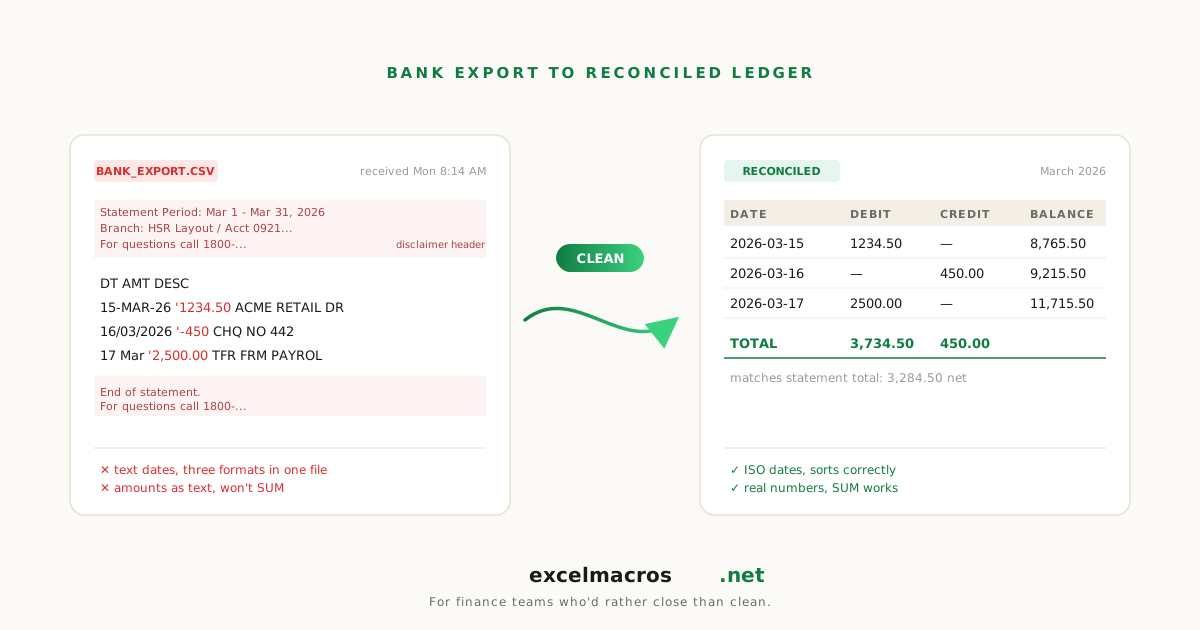
What separates "Excel users" from "Excel users in finance"
Every office worker uses Excel. Finance professionals live in it. The spreadsheets aren't supporting tools; they're the work product. Recons, forecasts, models, ad-hoc analyses, board packs, half the deliverable a finance person ships in a given week starts and ends in Excel.
This guide is for the people who already know Excel well enough that the tutorial-style content feels insulting. It's for the FP&A analyst with five years in seat, the treasury manager who built the cash forecasting model, the controller who's seen one too many "let me just rebuild this in Excel" projects. The goal: a sharper toolkit for the parts of the job that are repetitive enough to deserve macros.
TL;DR: Key takeaways
- Finance work has a high "boring tax": data prep, formatting, and freeze-before-share routines that consume 30 to 50% of analyst time.
- Most of that boring tax can be moved to free macros. The recurring weekly cleanup that takes 20 minutes can usually be done in 30 seconds.
- The biggest wins: pre-pivot data prep, audit-trail visibility (what's a formula, what's hardcoded), workbook-wide standardization (freeze, autofit, find/replace).
- Macros pair well with formulas. Use formulas for live calculation, macros for one-shot bulk operations.
- Don't replace your model. Replace the friction around your model.
The four jobs Excel does in finance
Most finance Excel work falls into one of four categories:
- Data prep: getting raw exports into a usable shape (CSV imports, ERP exports, downloads from web portals).
- Modeling: building the actual analysis (forecast, valuation, scenario, what-if).
- Reporting: turning model outputs into shareable artifacts (tables, charts, PDFs, decks).
- Audit and review: checking what you (or someone else) built before signing off.
Each category has its own friction patterns. Macros help most with categories 1, 3, and 4. They stay out of the way of category 2 (modeling), which is where your domain expertise actually lives.
Category 1: Data prep
Most analyst time is here. The CSV from the GL doesn't open cleanly. The portal export has merged cells and formatted-as-text numbers. The vendor file uses 28/04/2026 while your locale wants 04/28/2026. The portfolio data has duplicates from multiple sources.
The macro toolkit for finance data prep:
- Remove Duplicates by Multiple Columns: the dedupe that Excel's built-in can't do (because it requires every column to match).
- Trim Whitespace From All Cells: fixes the silent VLOOKUP mismatches.
- Convert Text to Numbers: handles currency-symbol and accounting-parens text-numbers in one pass.
- Standardize Mixed Date Formats: cross-locale date parsing without trusting Excel's locale guess.
- Unmerge Cells and Fill Down: pre-pivot prep for any data with merged category columns.
- Fill Blank Cells With Value Above: pivot-export cleanup.
- Remove Blank Rows: safer than F5 > Special > Blanks.
- Delete Empty Columns: trim wide CSV exports.
A typical Monday-morning cleanup of a weekly transactions export goes from 30 minutes of clicking to about 90 seconds with these macros chained.
For the deep-dive: The Complete Guide to Cleaning Up Data in Excel.
Category 2: Modeling (where macros stay out of the way)
Modeling is where you earn your salary. It's also where macros mostly don't help. The skill there is structuring the analysis, picking the right formulas, choosing the right level of detail, and making the result auditable. No macro replaces that.
A few macros that do help with modeling work indirectly:
- Highlight All Formula Cells: when you inherit a model from a predecessor, this paints every formula cell light yellow. The white cells are your inputs and (suspiciously) hardcoded overrides. Audit before you trust.
- Highlight Cells With Comments: finds the breadcrumbs the previous owner left.
- Convert Formulas to Values: freeze a model before sharing the snapshot.
These don't help you model. They help you understand a model someone else built, which is half the modeling job in any company older than three years.
Category 3: Reporting
Reporting is the "make the workbook look like a deliverable" phase. Format the totals row. Apply Freeze Panes consistently. Autofit columns so nothing is ###. Convert formulas to values for the audit copy. Hide the working tabs.
The macro toolkit for reporting:
- Add Totals Row to Numeric Columns: SUM formulas at the bottom with bold and a top border in one click.
- Freeze Top Row on All Sheets: consistent Freeze Panes across a 30-tab pack.
- AutoFit All Columns on All Sheets: no more
###on the executive view. - List All Sheet Names: generate a clickable table of contents for big packs.
- Sort Sheets Alphabetically: tame tab-bar chaos in long-running workbooks.
- Convert Formulas to Values: freeze the audit copy.
- Export Each Sheet to CSV: dump every tab as a CSV for downstream systems.
A typical pre-share polish that took 8 minutes (autofit each tab, freeze each tab, freeze formulas on each summary tab, save) becomes about 15 seconds.
Category 4: Audit and review
When you inherit a workbook, or before signing off on someone else's work, the audit pass.
The macro toolkit for audit:
- Highlight All Formula Cells: see which cells are calculated vs hardcoded.
- Highlight Cells With Comments: find the author's notes.
- Highlight Blank Cells: spot missing data.
- Count and Sum Cells by Color: if the prior owner color-coded categories, get hard counts.
- List All Sheet Names: map the workbook structure.
The classic audit story: an FP&A director inherits a 14-tab quarterly model from a departing analyst. The model "ties out" but she doesn't know which cells are formulas she can trust to recalc and which are overrides her predecessor typed in. She runs Highlight All Formula Cells; 540 cells turn yellow on the forecast tab; 60 stay white. The 60 white cells are the inputs (assumptions, scenario toggles) plus 8 cells in the middle of the calc chain that should be formulas but aren't. Two of those 8 are genuine overrides her predecessor made and forgot to undo. Found in 12 minutes versus an hour of cell-by-cell clicking.
A typical week with the macro toolkit
Monday morning (data prep): weekly transaction export from the GL.
- Run Trim Whitespace, Convert Text to Numbers, Standardize Dates, Remove Duplicates.
- Time: 90 seconds. Pre-macro: 25 minutes.
Tuesday (modeling): working in the forecast model. No macros.
Wednesday (reporting): build the weekly cash position pack.
- Run Auto-Pivot, Add Totals Row, Freeze Top Row All Sheets, AutoFit All Columns.
- Time: 30 seconds. Pre-macro: 8 minutes.
Thursday (audit): review a model from a colleague.
- Run Highlight All Formula Cells, Highlight Cells With Comments, List All Sheet Names.
- Time: 30 seconds. Pre-macro: 30 to 60 minutes of clicking.
Friday (close-out): lock in the week's deliverables for sharing.
- Run Convert Formulas to Values on summary tabs, save audit copy.
- Time: 90 seconds. Pre-macro: 15 minutes.
Total weekly time saved: about 70 minutes. Per year, about 60 hours. Time you can spend on the actual analysis your job was hired to do.
What macros don't replace
A finance analyst's value isn't in operating Excel quickly. It's in:
- Knowing which question to ask.
- Picking the right level of detail for the audience.
- Spotting when the numbers don't smell right.
- Building models that are auditable, reusable, and clear.
- Communicating the analysis effectively.
None of these are macro-able. The macros buy you time to do them better.
Common scenario: the dreaded ERP export
Every quarter you pull a transactions export from the ERP. The export comes through with:
- Currency-formatted numbers stored as text (
$1,234.56). - Mixed date formats because the ERP's locale doesn't match Excel's.
- Merged region/branch headers that break pivot.
- Whitespace contamination from copy-pasted comments.
- A few hundred blank rows from group separators.
The macro chain:
- Unmerge Cells and Fill Down on the region column.
- Remove Blank Rows on the full range.
- Trim Whitespace From All Cells.
- Convert Text to Numbers on amount columns.
- Standardize Mixed Date Formats on the date column.
- Remove Duplicates by Multiple Columns using transaction ID + amount.
- Build the pivot.
About 2 minutes of macro chain versus 45 minutes to an hour of manual cleanup.
How macros fit alongside Power Query and Power BI
Many finance teams have invested in Power Query for recurring data prep and Power BI for distribution. Macros aren't a replacement.
The sensible split:
- Power Query for recurring cleanup of the same data structure (a weekly CSV from the same source). Setup is real but it pays off across many runs.
- Macros for one-shot work, ad-hoc analyses, model audit, and any cleanup that doesn't recur.
- Power BI for distribution and visual analytics. The cleanup happens upstream.
Both Power Query and macros can live in the same workbook. Use whichever is fastest for the specific task at hand.
Frequently asked questions
Are these macros approved by IT?
Each macro is open-source. The .bas files are plain text and auditable. They make no network calls and don't run shell commands. If your IT department has a macro review process, point them at the GitHub repo. We've had multiple finance teams get their IT to whitelist these specific files based on the source code review.
Will macros run on Excel for Microsoft 365?
Yes. The macros target Excel 2016 and later, which includes all current Microsoft 365 versions. They run identically on Windows and Mac (with two caveats noted on individual tool pages, mainly around VBScript.RegExp which our macros avoid).
Can I add my own macros to the same .xlsm?
Yes. Each tool ships as a separate .xlsm for clean separation, but you can copy the modules into your own personal macro workbook (PERSONAL.XLSB) so they're available in every Excel session. Press Alt+F11, drag the module from one VBA project to another.
What about model security and approvals?
The macros only modify the active workbook based on what you've selected. They don't write to other files (with one exception: Export Each Sheet to CSV). They don't connect to networks. They don't run shell commands. So model security is whatever your existing workbook security is.
Where do I learn VBA to write my own macros?
Start by recording macros (Developer tab > Record Macro), then edit the recorded code. Reading the .bas files in the excelmacros.net repo is also a decent way to learn idiomatic VBA. The Excel VBA Programming For Dummies book is a reasonable first textbook if you want a structured introduction.
What to do next
The fastest single time-saver for most finance pros: the cleanup chain on the weekly ERP/GL export. Pick the worst-formatted column you deal with weekly, run the matching macro, and add the macro to your Personal Macro Workbook so it's always available.
For audit work, run Highlight All Formula Cells on the next inherited model that hits your inbox. The 5-minute pass it takes will surface things you'd otherwise miss in a 60-minute review.
For more macro options across categories, see the full catalog at /audience/finance and the cleanup deep-dive at The Complete Guide to Cleaning Up Data in Excel.