How to Export Each Excel Sheet to a Separate CSV File
How to save every sheet of an Excel workbook as a separate CSV file: built-in Save As, Power Query, and a free macro that batches all tabs in one click.
2026-04-28
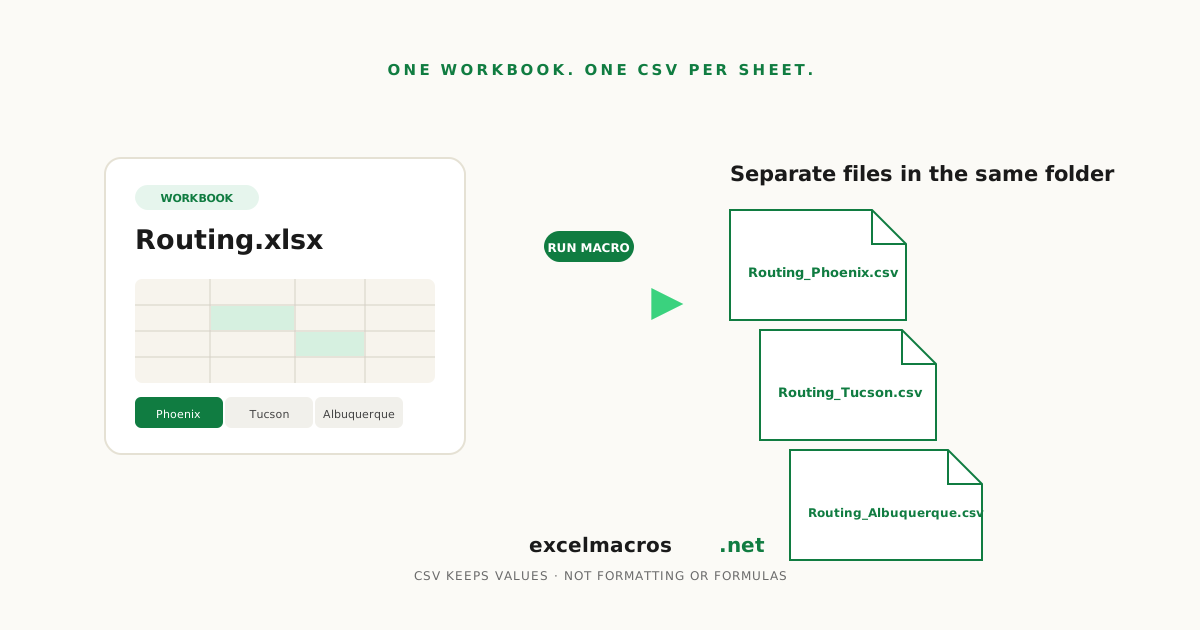
The "12 tabs, need 12 CSVs" problem
Workbook with 12 tabs (one per region, or one per month, or one per product). The downstream system (Python script, database loader, partner who only accepts CSV) needs each tab as a separate .csv file. Excel's File > Save As > CSV saves only the active sheet. (If you need each tab as a separate Excel workbook rather than a CSV, see saving each sheet as a separate file.)
TL;DR: Key takeaways
- File > Save As > CSV saves the active sheet only. For 12 tabs, that's 12 trips through the dialog.
- A VBA macro loops through every visible sheet, exports each as CSV in the workbook's folder, and reports the count.
- The CSV format is plain text. Formulas evaluate to values. Formatting and merged cells don't carry over.
Method 1: File > Save As > CSV (one tab at a time)
The standard approach.
- Click the tab you want to export.
- File > Save As, pick CSV format.
- Click Save. Excel warns that only the current sheet will be saved: click OK, then Yes at the second prompt about unsupported features.
- Repeat for each tab.
If you only ever need one sheet, saving only one Excel sheet as CSV covers that case, including the step that catches people out afterwards.
For 12 tabs, expect about 3 to 5 minutes of dialog navigation.
Method 2: The free VBA macro
Download Export Each Sheet to CSV. Free .xlsm with one macro.
Save the workbook to disk first. The macro saves CSVs in the same folder as the workbook.
- Alt + F8, pick the macro, click Run.
- The macro creates one CSV per visible sheet using the naming pattern
<workbook>_<sheet>.csv. Reports the count and folder.
For 12 tabs, expect about 2 seconds.
What happens to formatting, formulas, and merged cells
CSV is plain text. So:
- Formulas evaluate to values; the formula itself isn't preserved.
- Formatting (colors, borders, number formats) is dropped.
- Merged cells flatten: the merge's value lands in the top-left cell, the rest become blank.
- Comments and hyperlinks are dropped.
If any of these matter, freeze formulas first with Convert Formulas to Values, unmerge cells with Unmerge Cells and Fill Down, and accept that formatting is lost (CSV's design tradeoff).
File naming
The macro names each CSV <workbook>_<sheet>.csv. So a workbook called Routing.xlsm with sheets Phoenix, Tucson, Albuquerque produces:
Routing_Phoenix.csv
Routing_Tucson.csv
Routing_Albuquerque.csv
Sheet names with characters that aren't legal in filenames (/ \ : * ? " < > |) get sanitized to underscores.
A common scenario: weekly batch export
Data engineer maintains weekly routing overrides as an Excel workbook with one sheet per region (18 regions). The routing system ingests CSVs at 2am.
- Edit the workbook.
- Run Export Each Sheet to CSV.
- 18 CSVs land in the workbook's folder.
- Routing system picks them up.
Versus 18 trips through Save As: 8 minutes versus 2 seconds.
On Mac vs Windows
The macro works on both. On Mac, the first run may prompt for folder access permission (macOS sandbox); click Allow. After that, runs are silent. The macro uses Application.PathSeparator so paths build correctly on either OS.
Frequently asked questions
Does it export hidden sheets?
No. The macro skips hidden and very-hidden sheets. To export them too, unhide first with Unhide All Sheets.
Can I customize the file naming pattern?
Edit the .bas source. Change the line that builds outPath. The current pattern is <workbook>_<sheet>.csv. You could change to <sheet>.csv (no workbook prefix) or <sheet>_<date>.csv (timestamped).
What if a CSV with the same name exists?
It gets overwritten without warning. Save important files outside the export folder if you don't want them clobbered.
Does it preserve cell types?
CSV is text. Numbers come through as text representations of numbers. Dates come through as text representations of dates (in your Excel locale's default format).
Can I undo it?
CSV creation is a file system operation, not an Excel edit. Ctrl/Cmd + Z does NOT delete the CSVs. To remove, delete from your file manager.
What to do next
For the reverse direction (combining many CSVs into one workbook), see Combine All Sheets Into One, though that combines tabs within a workbook, not external CSVs. For external CSVs, Power Query's "From Folder" feature is the right tool.