Convert Text to Clickable Hyperlinks in Excel
Make a column of URL text clickable in Excel: the F2 trick, the HYPERLINK formula, and why converting a whole column needs a macro.
2026-04-28
The "URLs aren't clickable" problem
You imported a column of URLs from a CSV. Every cell shows https://example.com, but nothing happens when you click. Excel only auto-links a URL when you type it into a cell yourself; paste it, import it, or fill it down, and it stays plain text forever.
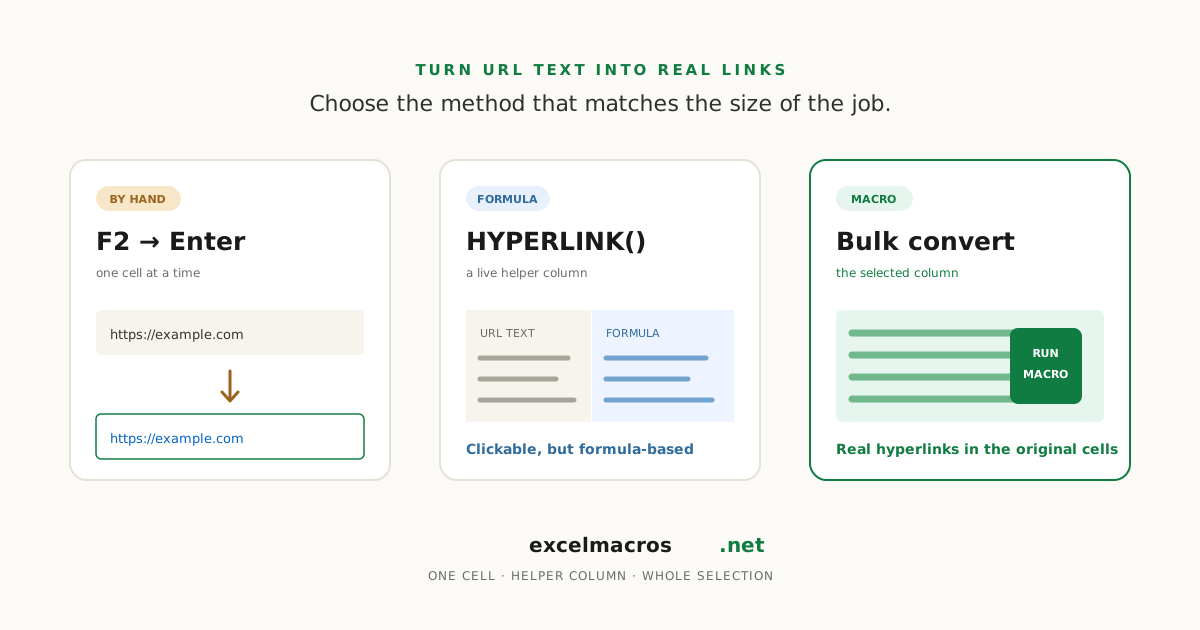
To convert URL text to clickable hyperlinks in Excel, pick based on scale: F2-Enter for a handful of cells, =HYPERLINK() for a live formula, or a macro for a whole column.
TL;DR: Key takeaways
- F2 then Enter re-triggers auto-linking on one cell. Fine for five cells, painful for five hundred.
=HYPERLINK()builds a clickable link from a formula, but it isn't a real hyperlink object and lives in a helper column.- Excel has no built-in way to convert a whole column of existing text into real hyperlinks. That gap is why this gets searched so often.
- A free macro creates real hyperlinks in place across a whole selection.
- If F2-Enter does nothing, the AutoCorrect setting for auto-linking is switched off.
Method 1: F2 then Enter
- Click the cell holding the URL text.
- Press F2, then Enter.
Excel re-reads the cell and creates the link, for http://, https://, www., and email addresses. The catch: no way to apply it to a selection. 200 cells means 200 pairs of keystrokes.
If this does nothing at all, check File > Options > Proofing > AutoCorrect Options > AutoFormat As You Type on Windows (Excel > Preferences > AutoCorrect on Mac) and tick Internet and network paths with hyperlinks. Microsoft's guide covers the same switch. Turning it back on won't retroactively fix cells you've already typed. If it is already ticked and F2 then Enter still does nothing, see why an Excel hyperlink is not working.
Method 2: The HYPERLINK formula
=HYPERLINK(A2, "View invoice")
The second argument is optional friendly text; =HYPERLINK(A2) shows the raw URL. It's the only easy way to display "View invoice" while linking somewhere long. Two catches: the link lives in a formula, not the cell, so paste-as-values reverts it to plain text, and it needs a helper column. For a list you'll sort or hand to someone else, a formula impersonating a link isn't what you want.
Method 3: Convert the whole column with a macro
There's no built-in bulk conversion, which is the whole reason this question gets asked. Download Bulk Add Hyperlinks. Free .xlsm, runs offline.
- Select the range holding your URL text.
- Alt + F8, pick
BulkAddHyperlinks, click Run. - A popup reports how many cells it linked and how many it skipped.
It checks whether each cell starts with http://, https://, or www. (case-insensitive), then creates a real hyperlink using the existing text as the display. www. gets https:// added to the address while the cell still reads www.. If a cell already has a hyperlink, the macro rebuilds it from the current text, fixing links that drifted out of sync with edited text.
What counts as a URL
| Cell text | Result |
|---|---|
https://example.com | Linked |
www.example.com | Linked (as https://www.example.com) |
example.com | Skipped, no prefix |
mail@example.com | Skipped |
Bare domains like example.com are indistinguishable from ordinary text, so the macro leaves them. Add a https:// prefix first with Add Prefix or Suffix if your export has bare domains.
A real example
A procurement coordinator at a facilities company keeps a 1,200-row supplier sheet with URLs pulled from a quarterly CSV export. Selecting the column and running the macro links all 1,200 cells in about two seconds; the skipped count also surfaces the 30-odd malformed entries worth fixing at the source.
Going the other way: removing hyperlinks
Right-click a selection and choose Remove Hyperlinks. It strips the link and keeps the display text, so the underlying address is gone. Removing hyperlinks and keeping the text covers formula-made links and stopping Excel from recreating them. To save the real target first, see how to extract the URL from a hyperlink, or use Convert Hyperlinks to Plain Text to flatten in place.
Frequently asked questions
How do I convert an entire column of text to hyperlinks at once?
Excel has no built-in command for it. =HYPERLINK() gets you a clickable helper column, and F2-Enter only handles one cell at a time. For real hyperlinks on the original cells, run Bulk Add Hyperlinks over the selection.
Why aren't my pasted URLs turning blue and clickable?
Pasted and imported values skip AutoCorrect entirely, so only URLs you type and confirm yourself auto-link. If typing a fresh URL doesn't link either, tick Internet and network paths with hyperlinks under AutoCorrect Options.
Will this convert email addresses to mailto links?
No. The macro matches only http://, https://, and www.. Typing an email by hand still creates a mailto: link through AutoCorrect.
Can I undo it?
Ctrl + Z right after running removes the hyperlinks. Once saved and closed, use right-click Remove Hyperlinks on the selection instead.
How do I click a hyperlinked cell without opening the link?
Click and hold until the pointer turns into a cross, then release. Arrow keys work too, and never trigger navigation.
What to do next
If URLs arrived alongside other mess, the complete guide to CSV imports in Excel covers the rest. Otherwise, grab the free macro and convert URL text to clickable hyperlinks in a single pass.